

Brand & Theme
Customize your organization's branding and theme settings. Upload logos, configure fonts and colors, and adjust login page styles.
CORE lets you customize your organization's branding and theme settings. You can upload your logo, configure fonts and colors, and adjust login page styles.
Configure Brand Assets
Open the Brand & Theme section from the main navigation menu.
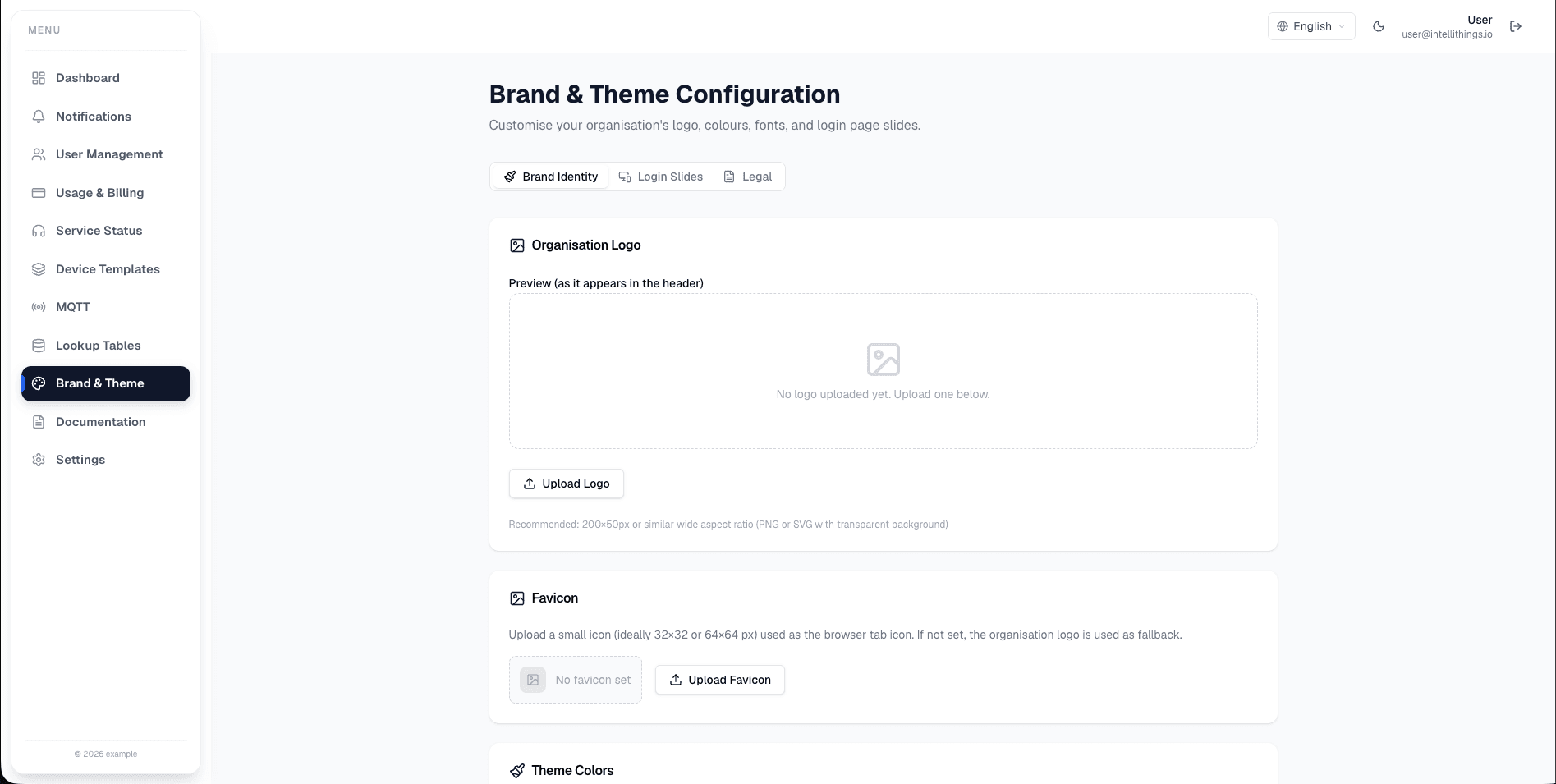
You see the Brand Assets tab by default. Here, you can upload your organization's logo and configure theme settings.
- Click Upload Logo.
- Select your logo file from your device.
- Review the uploaded logo preview.
- Select a font from the Font dropdown.
- Configure Theme Colors as needed.
Use the Theme Colors section to choose the primary and supporting colors used across the CORE interface. Preview the result before saving so the theme remains readable.
Customize Login Page Slides
Switch to the Login Page Slides tab.
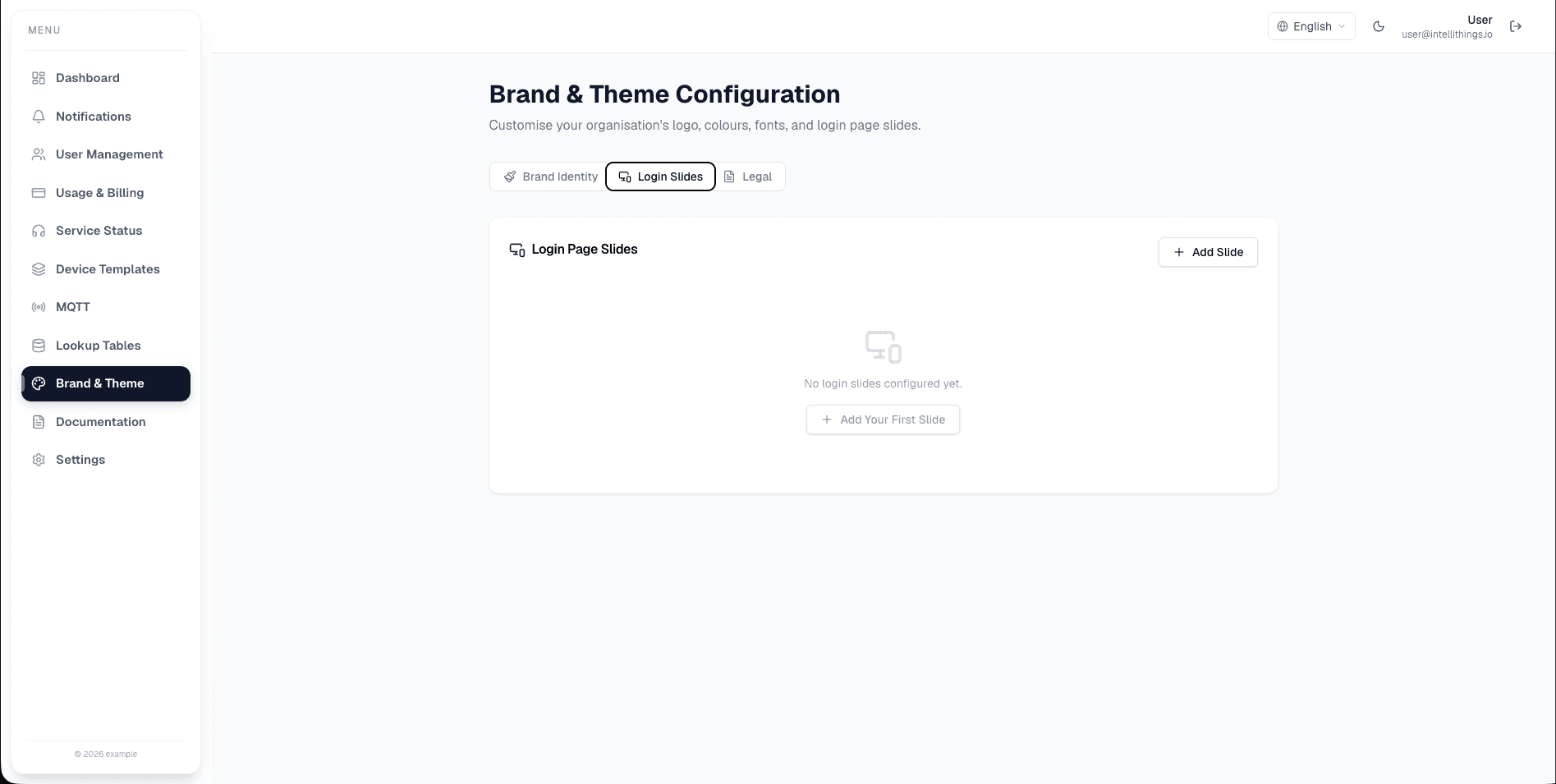
You can now configure login page slides.
- Click Add Your First Slide or Add Slide to add a new slide.
- Enter content for the slide.
- Configure Brand Colors for the login page.
- Save your changes.
Configure Legal Settings
Navigate to the Legal tab.
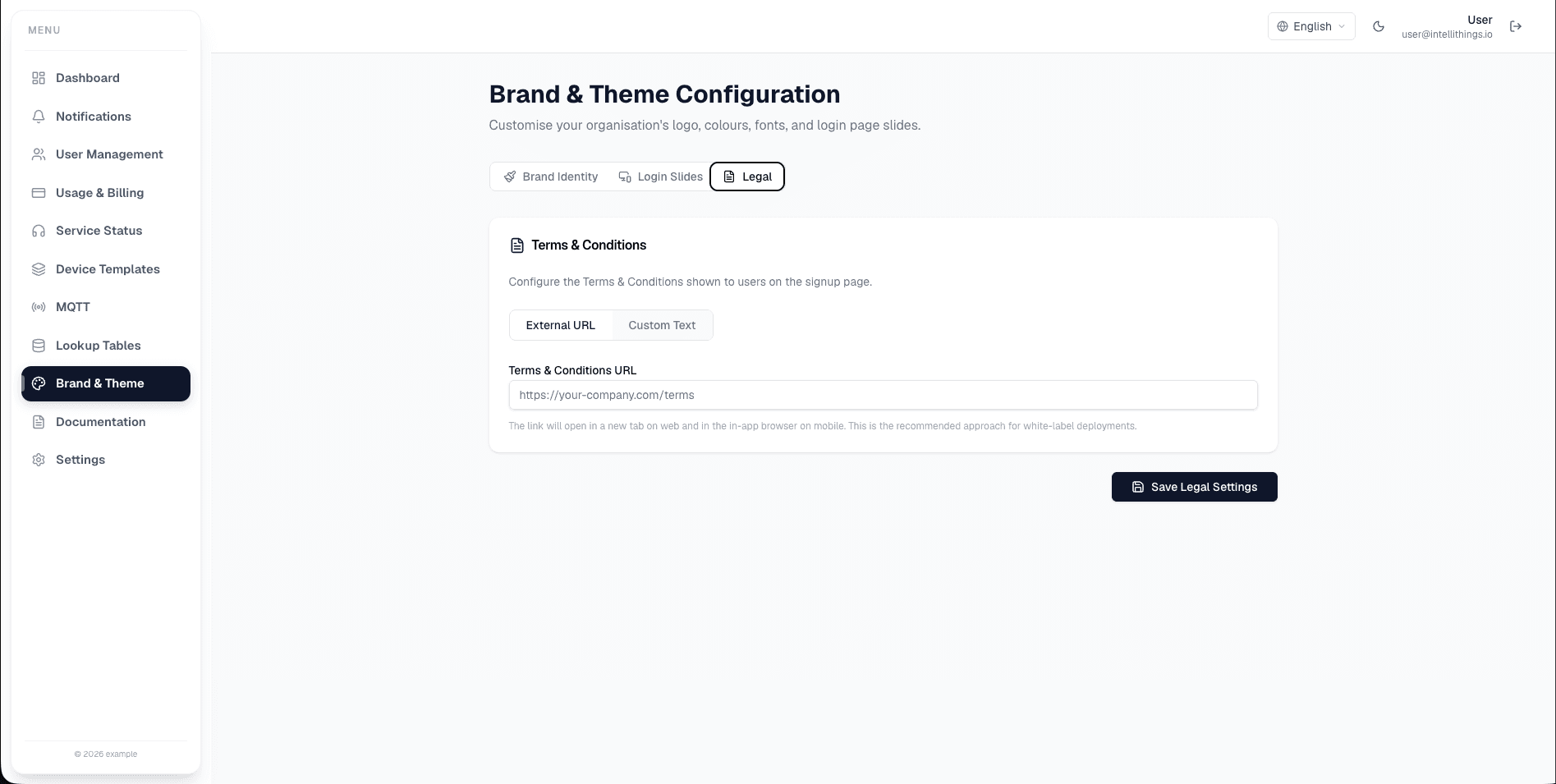
Here, you can configure legal settings for your organization.
- Enter the Terms & Conditions URL.
- Add an External URL if needed.
- Enter custom text for legal notices.
- Click Save Legal Settings to apply changes.