

Claiming a Device
Learn how to claim a device by using its claim token or scanning a QR code from the CORE dashboard.
CORE lets you connect a device to an account by claiming it. To claim a device, use the device's claim token. You can enter the claim token manually or scan a QR code that contains the claim token.
Overview
This guide covers:
- Claiming a device from the CORE dashboard
- Using the claim token defined in the Device Template
- Security considerations for device claiming
- Reclaiming a device when transferring between accounts
Claim a Device from the Dashboard
CORE's Dashboard is your main overview for managing devices. You can add new devices, search for existing ones, and filter them by status.
Dashboard Overview
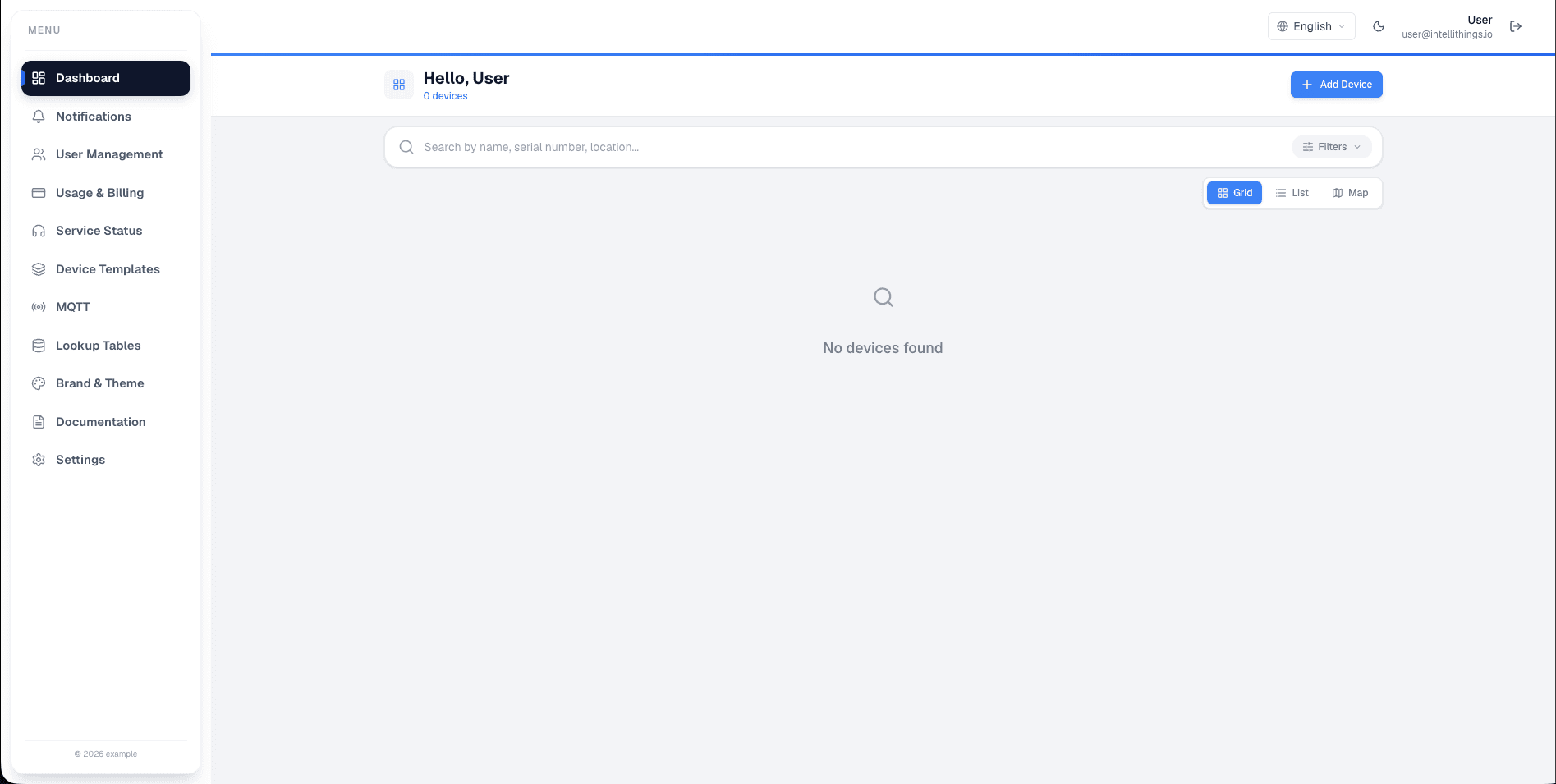
On this screen, you see the main dashboard view. You can:
- Add new devices using the Add Device button.
- Search for devices using the search field: Search by serial number, device name, or model.
- Filter devices using the Filter button.
Click Add Device in the top-right corner to start the claiming process.
Search and Filter
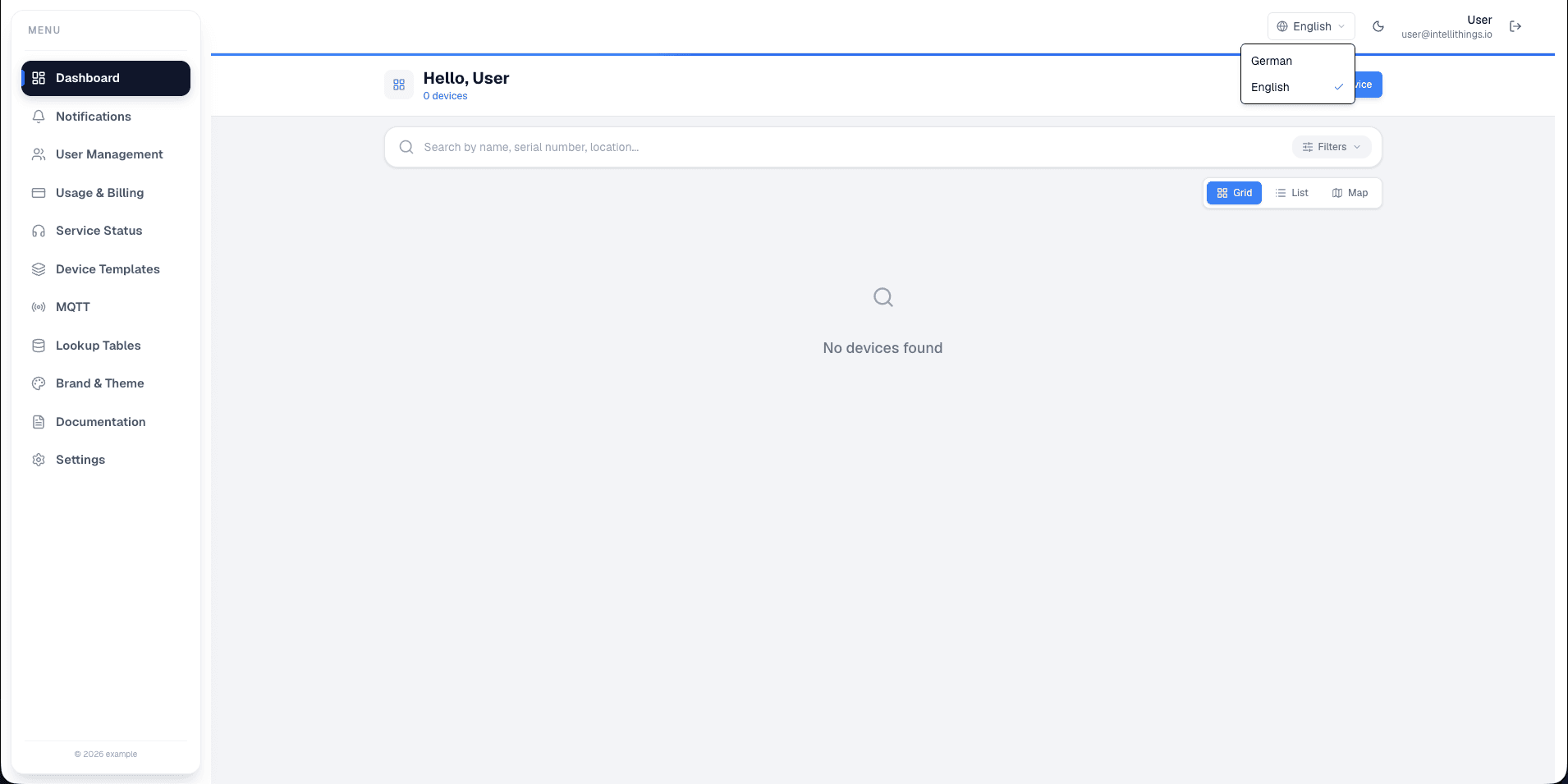
This screen shows the search and filter options in action. You can:
- Use the search bar to find a specific device.
- Apply filters to narrow down your results.
Try searching or applying filters to find the device you're looking for. Use the filter and search controls to narrow the dashboard or device list. Clear the filters when you want to return to the full list.
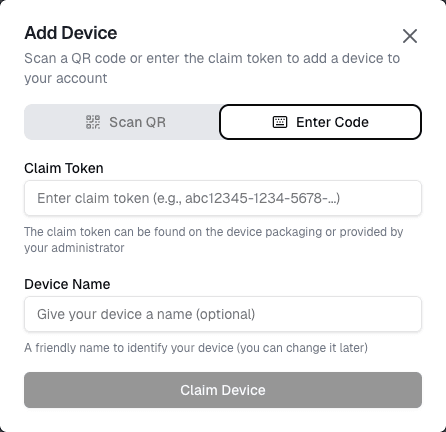
Note: This screenshot needs review before publishing because the exact state is unclear. Review the screenshot and confirm the visible state before publishing this page.
Add Device Dialog
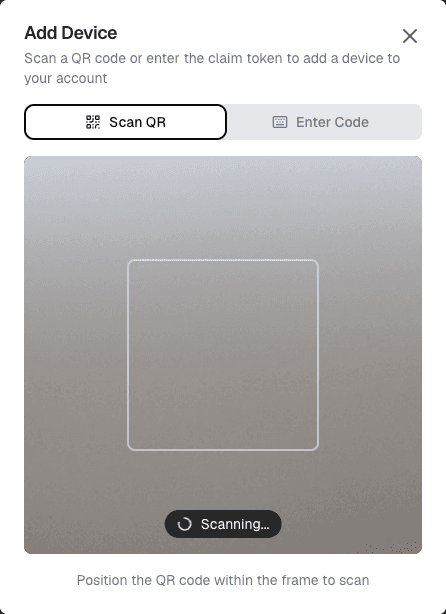
This screen appears when you choose to add a new device. You can:
- Scan a QR code using the Scan QR button.
- Enter a code manually using the Enter Code button.
- Continue with the process.
Choose the method that works best for you to add a new device:
Enter the Claim Token Manually
Make sure the full token is entered correctly.
Scan the QR Code
The QR code can be scanned with the IntelliThings app or with the corresponding white-label app if the customer uses a white-label app from IntelliThings.
- Choose the option to scan a QR code.
- Scan the QR code on the machine or device.
- Complete the claiming process.
Empty Dashboard
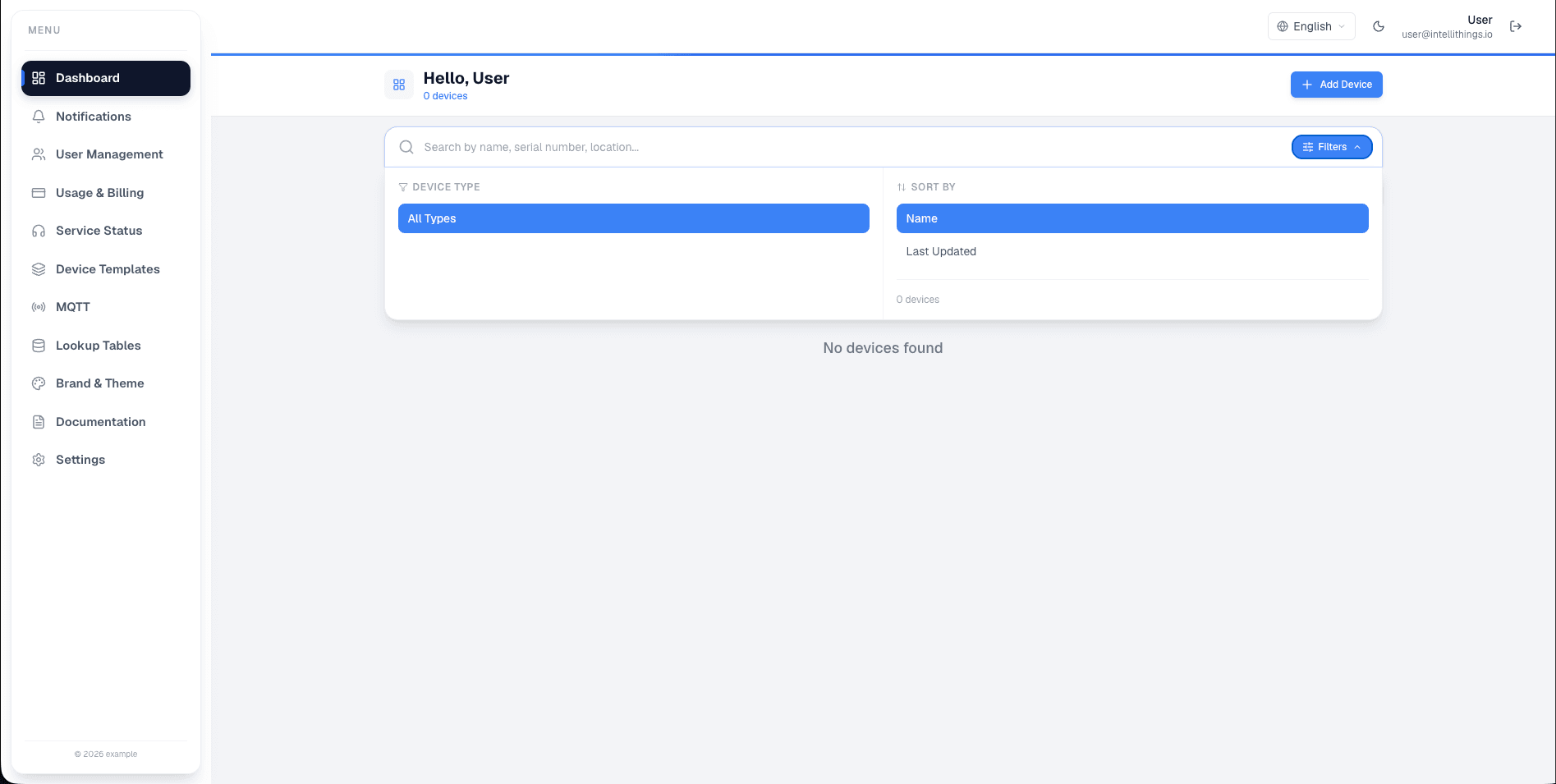
This screen shows the dashboard when no devices are listed. You can:
- Click the Add Device button to begin adding a new device.
This is the starting point if you're setting up your first device in CORE.
Use the Claim Token
The claim token is defined in the Device Template section. You can copy it from there and use it to claim a device.
When a device is shipped to a customer, always use the generated QR code. Place a sticker with the QR code on the machine or device so the customer can scan it directly.
Claiming Security
Once a device has been claimed, it is assigned to the claiming account. It cannot be claimed again with another account.
This is done for security reasons. It prevents an already assigned device from being accidentally or improperly taken over by another account.
Reclaim a Device
If a device needs to be claimed by another account, it must be unclaimed first.
A device can be unclaimed in two ways:
- Delete the device from the customer's account.
- Use the Unclaim function in the Device Template section.
Only after the device has been unclaimed can it be claimed again by another account.