

Saving changes
Save or discard configuration changes, and understand which actions take effect immediately.
Configuration changes must be saved
Editing a setting does not apply it to the RevPi. Save your changes to make them take effect. Direct actions, such as testing an output or switching a relay, take effect immediately, after confirmation where required.
Save or discard changes
Each page has its own unsaved changes. When you edit a setting, a bar appears at the bottom of the page:
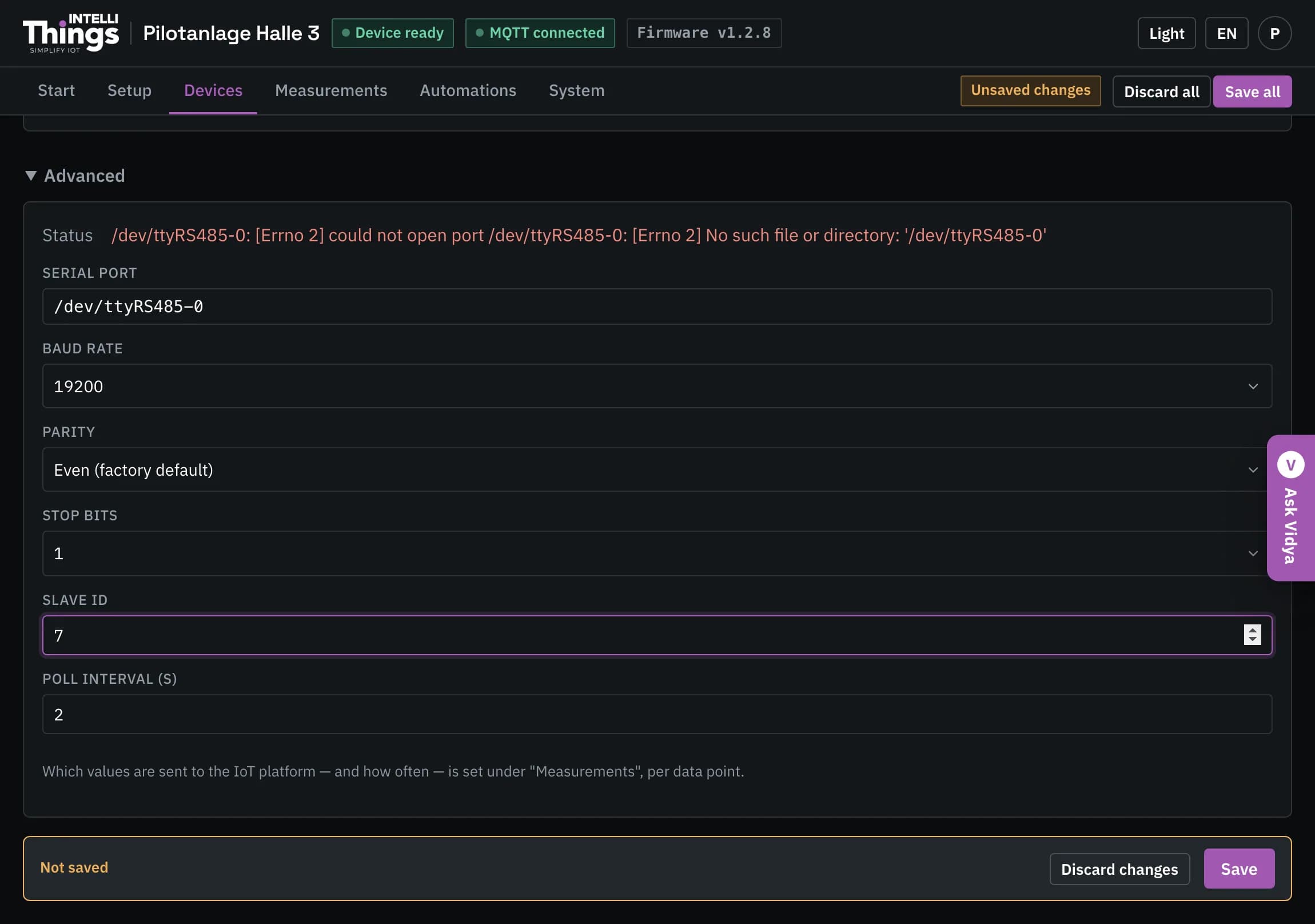
- Save applies the changes on the current page only. For example, saving on the scale’s page applies the scale settings; saving on Automations applies the rules. Unsaved changes on other pages are unaffected.
- Discard changes discards the unsaved changes on the current page.
The bar is only visible while the page has unsaved changes.
The tab bar at the top also shows Unsaved changes. Use Save all to save changes across all pages, or Discard all to discard them across all pages.
Changes saved within a wizard or panel
These two workflows save changes without a separate page save:
- Adding a device with the setup wizard: completing the wizard saves the device immediately. Its final screen states Saved straight away.
- Setting up a port: Save and activate saves the port settings and closes the panel.
Adding devices from a CSV file works differently: Add N devices adds them as unsaved changes. Review the list, then click Save. See Adding devices.
When changes take effect
Settings saved with Save take effect immediately; no restart is required.
Changes to the module layout use Restart I/O and apply instead. This reloads the I/O driver and switches every output off for about one second. Do not apply a module layout while the machinery is running. Before applying changes on an unfamiliar RevPi, compare the module list with the hardware in the cabinet. See Changing which modules are fitted.
Direct actions do not wait for a page save. Testing an output, switching a relay, taring a scale or taking a photo takes effect when you perform the action, after confirmation where required.
Leaving a page or closing a dialog
If you leave a page with unsaved changes, the dashboard asks for confirmation. Confirming that you want to leave discards those changes.
Dialogs, such as the Shelly relay settings or device identity dialog, also ask for confirmation before closing with unsaved changes.
Changes made by another user
If another user saves changes while you have the page open, the dashboard rejects your save and displays a message. This prevents your changes from overwriting theirs.
Click Discard, review the current settings, then make your changes again.
If the RevPi becomes unreachable
A red bar indicates that the RevPi is not responding and offers Reload page. The bar disappears automatically when the RevPi becomes reachable again.