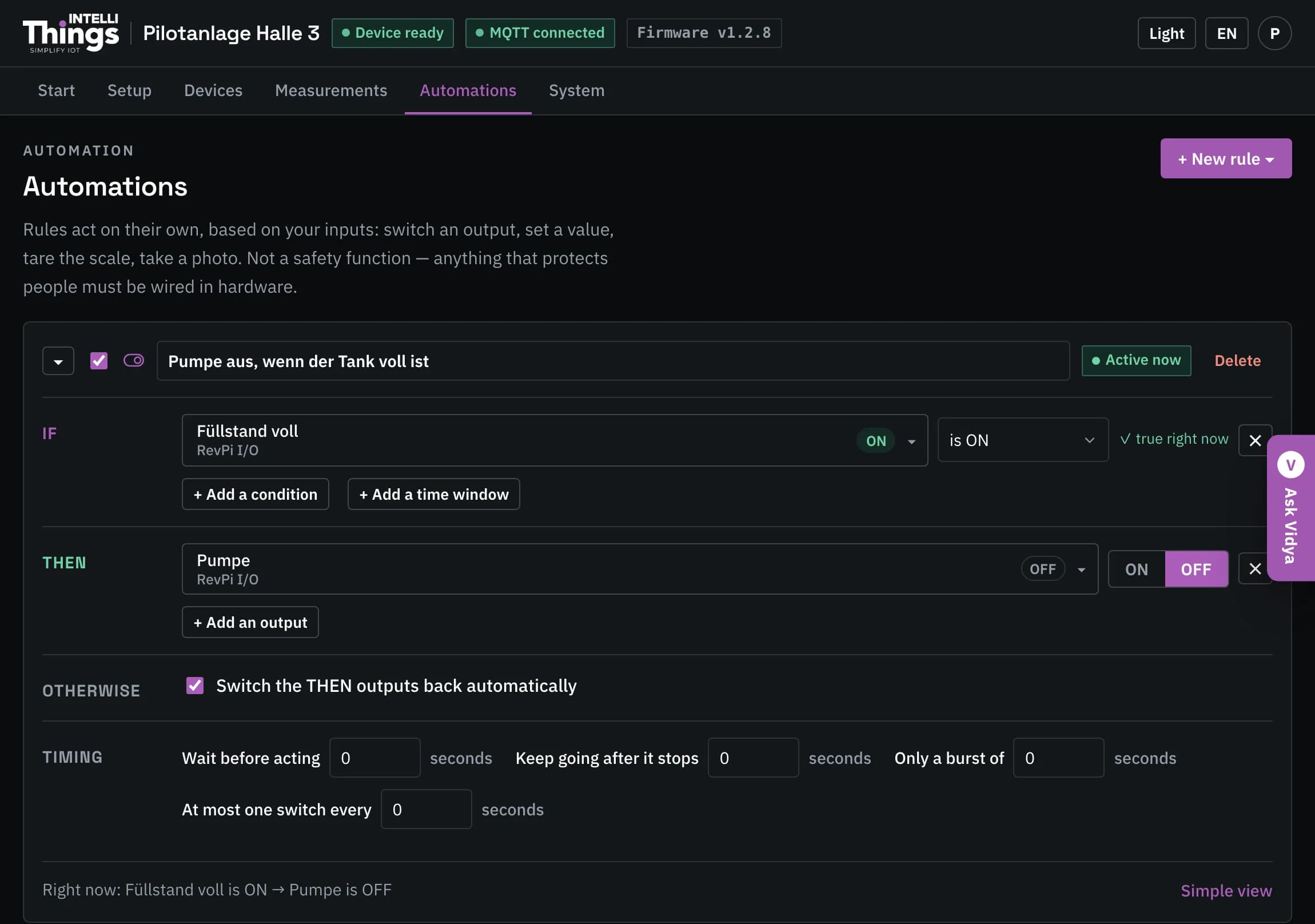

Automations
Create local rules to control outputs and trigger actions based on readings, conditions or schedules.
Use Automations to configure rules that let the RevPi act automatically: switch a pump based on tank level, run a fan when the temperature rises or open a valve as weight increases. Rules run locally on the RevPi and continue to operate when the connection to intelliThings CORE is down.
Do not use automation rules for safety functions
Automation rules are intended for operational tasks. Functions that protect people or machinery must be implemented directly in hardware so they remain effective if the RevPi is switched off or fails.
Create a rule
Click + New rule to choose a rule type. Each type is illustrated to help you select the one that fits your task:
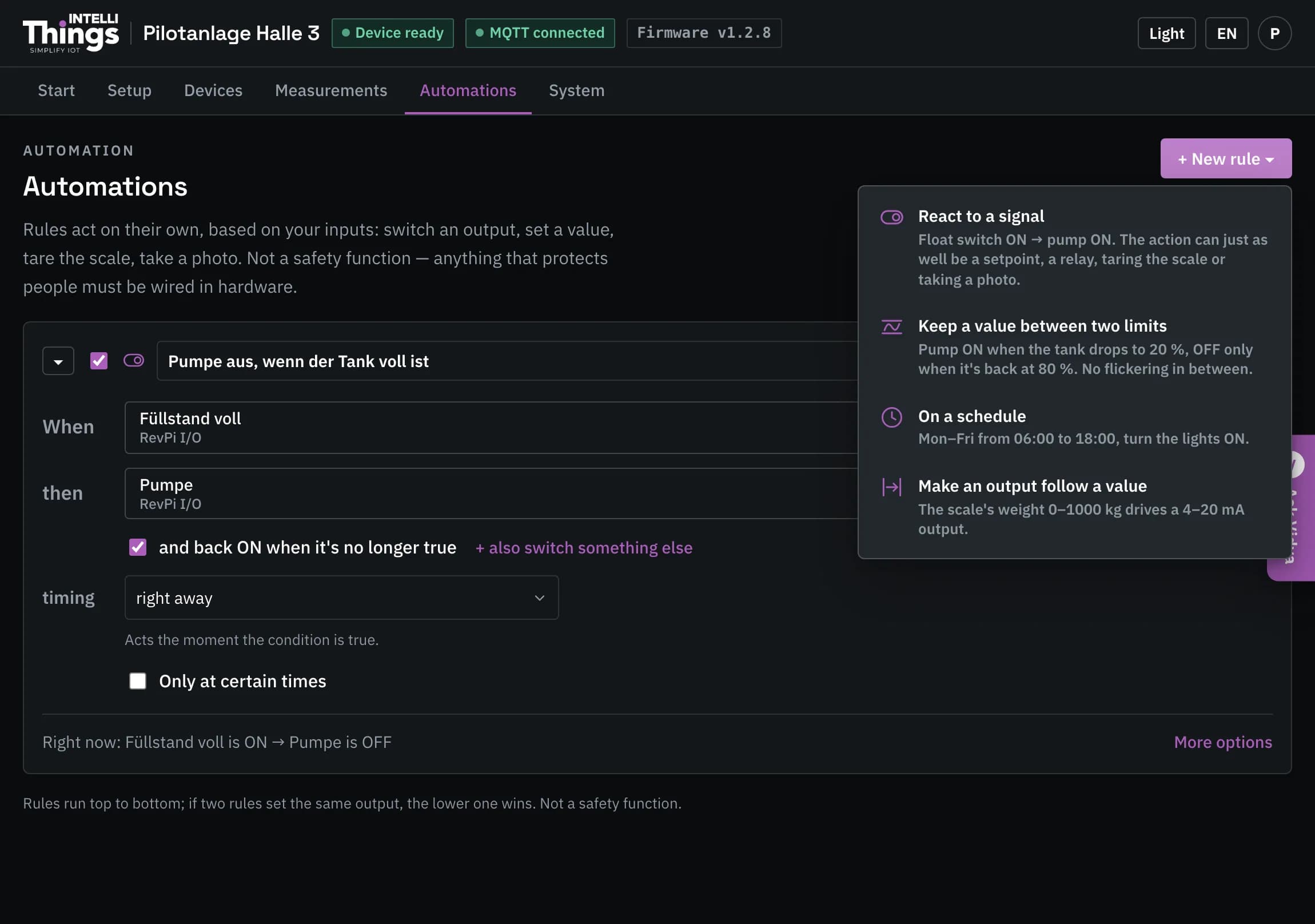
| Rule type | Example | Use it for |
|---|---|---|
| React to a signal | If [Float switch] is [ON] → then [Pump] [ON] | Use a switch or sensor to control an output or relay, or trigger a photo |
| Keep a value between two limits | If [Level] drops to [40] → [Pump] ON; switch OFF when [Level] reaches [200] | Pumps, heaters, fans |
| On a schedule | On [Mon–Fri] from [06:00] to [18:00] → [Light] ON | Lighting, shifts, cleaning cycles |
| Make an output follow a value | [4–20 mA] follows [Weight]: 0 → 4 mA, 1000 → 20 mA | An output that should track a measurement |
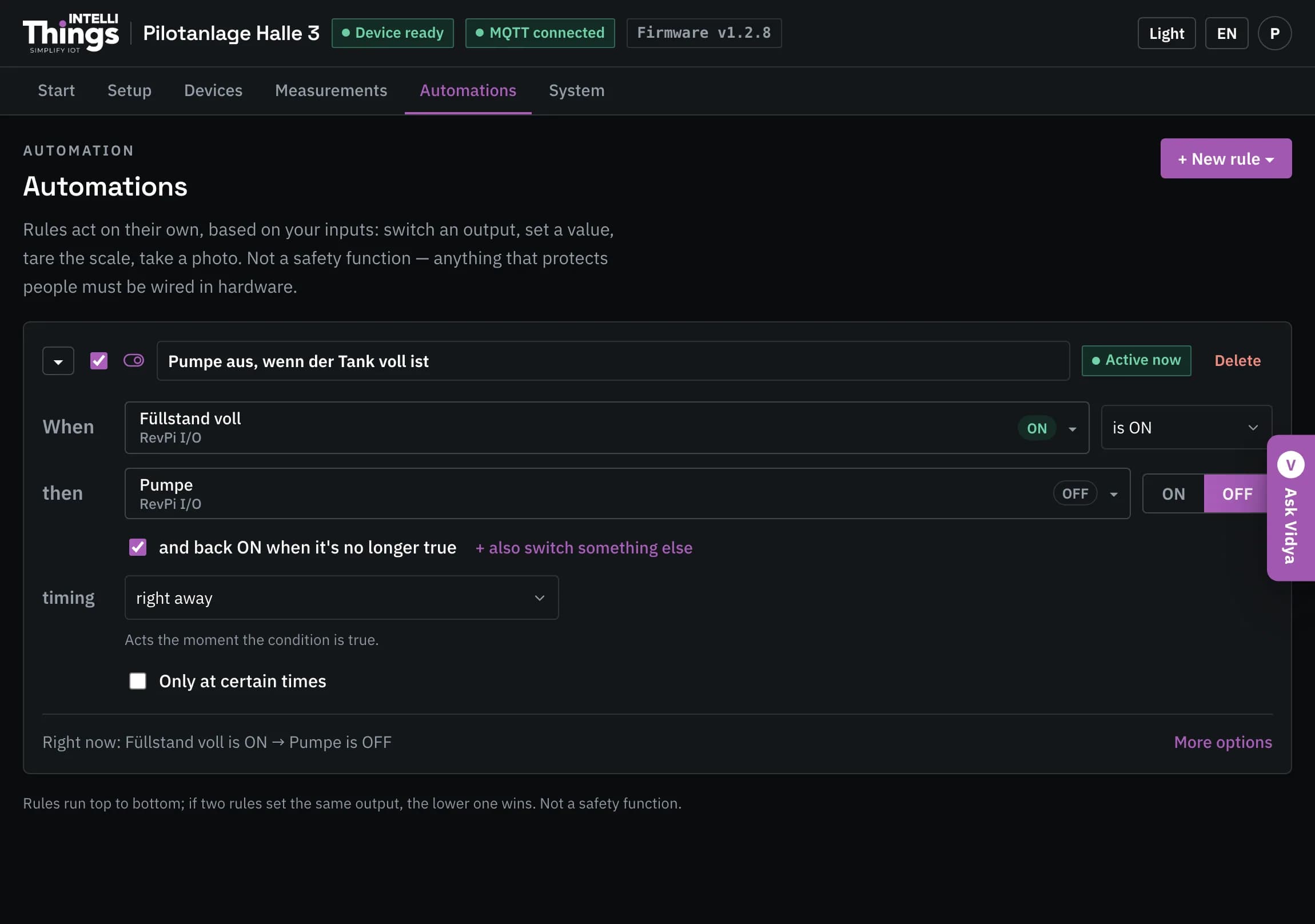
Complete the fields in the rule’s sentence, then click Save on the page. The rule takes effect as soon as it is saved. See Saving changes.
Use two limits to avoid repeated switching
With a single threshold, fluctuations around that threshold can repeatedly switch a pump on and off, increasing wear. Two thresholds separate the switching points: the pump starts when the level reaches the lower limit and stops only when it reaches the upper limit. This is called hysteresis.
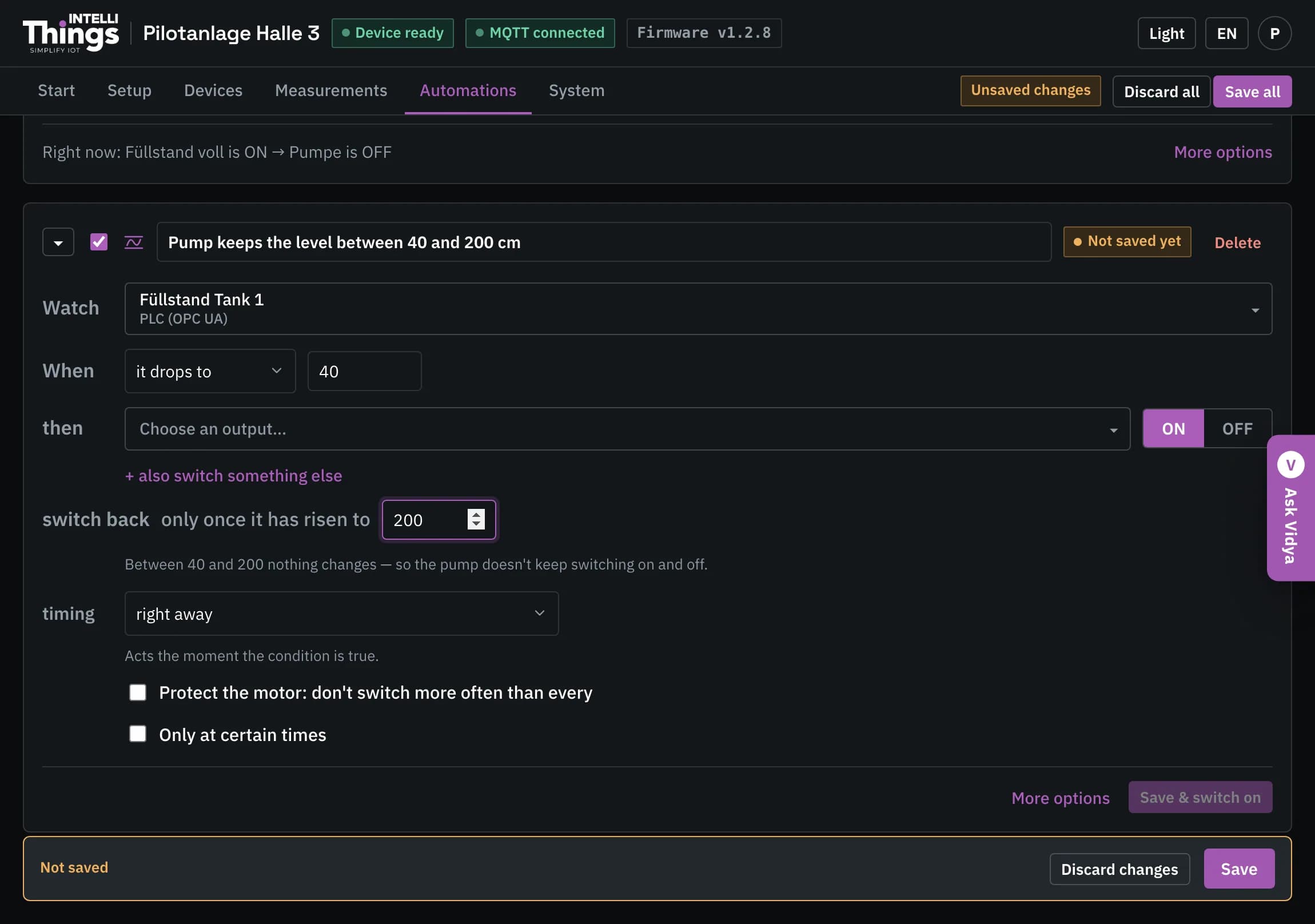
Conditions, actions and timing
- Available inputs: readings from any configured device, the platform connection status and messages received from the platform.
- Conditions: check whether a value is on or off, above, below or equal to a number, or equal to specified text. Use has not reported for with a duration in seconds to detect a sensor that has stopped reporting and left its last value unchanged.
- Actions: control outputs or Shelly relays, tare the scale or take a photo.
- Timing: act immediately, wait until a condition has remained true for a specified time, keep the action active for a specified time after the condition ends, or generate a short pulse. Keeping an action active afterwards works like a timed stairwell light.
- Time windows: select days and a time window. Windows can cross midnight, for example 22:00–06:00.
- Minimum switching interval: limit how often switching can occur, for example to once every few minutes, to reduce frequent motor switching.
Read a rule’s status
Each rule has a status badge showing what it is doing, for example Active now, Waiting, On — ends in 12 s or OFF — until it drops to 40 cm. The Right now: section below shows the live readings used by the rule.
If two rules control the same output, both display a notice. The rule further down the page takes precedence.
Advanced rule settings
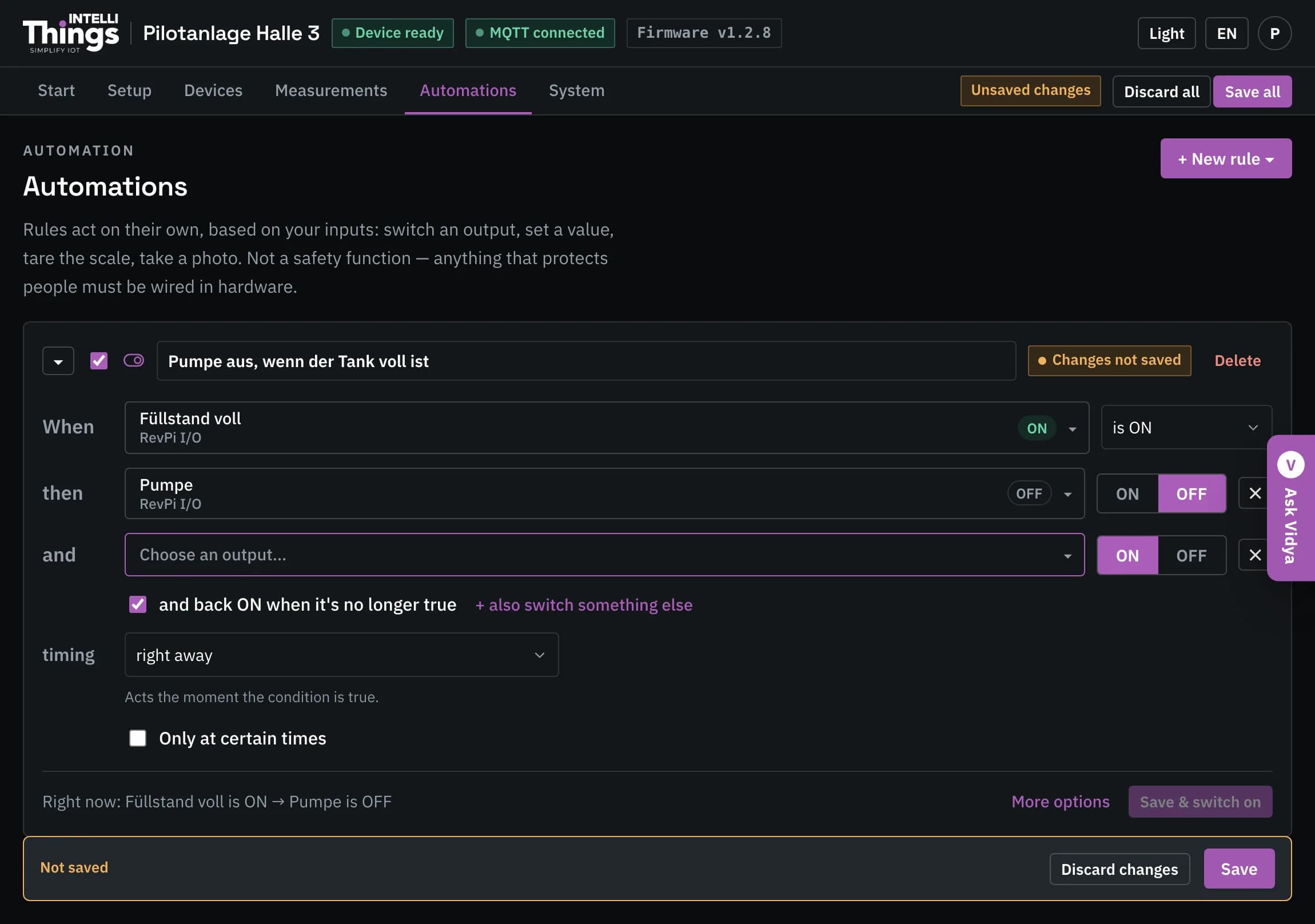
Click More options to open the full editor. It supports multiple conditions, an Otherwise action for when the condition is not met, all timing options and formulas such as temperatur > 50 and pumpe == 0.