

System
Manage firmware updates, backups and certificates, and collect information for support.
Open System to maintain the RevPi, manage its configuration and get help with problems.
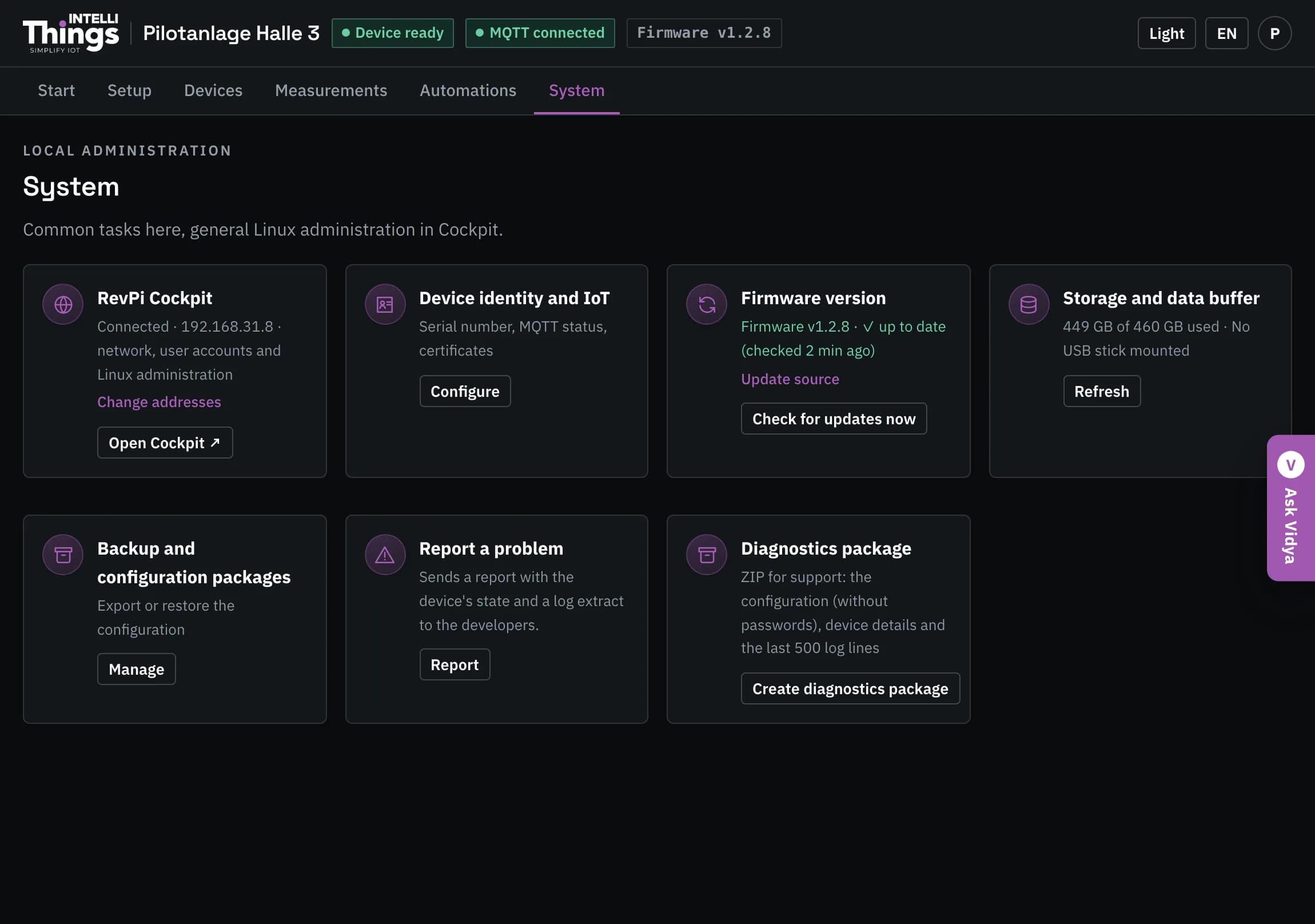
| Card | Purpose |
|---|---|
| RevPi Cockpit | View the RevPi’s network address and open its administration interface to change network settings and user accounts. |
| Device identity and IoT | Manage the display name, serial number, platform connection and certificates. |
| Firmware version | View the installed firmware version and manage updates. |
| Storage and data buffer | View disk usage and whether USB storage for camera events is mounted and available to the RevPi. |
| Backup and configuration packages | Export and import the configuration. Passwords, tokens and certificates are excluded from exports. |
| Report a problem | Send a problem report to firmware support. |
| Diagnostics package | Download a ZIP file to share with support. |
Device identity and the platform
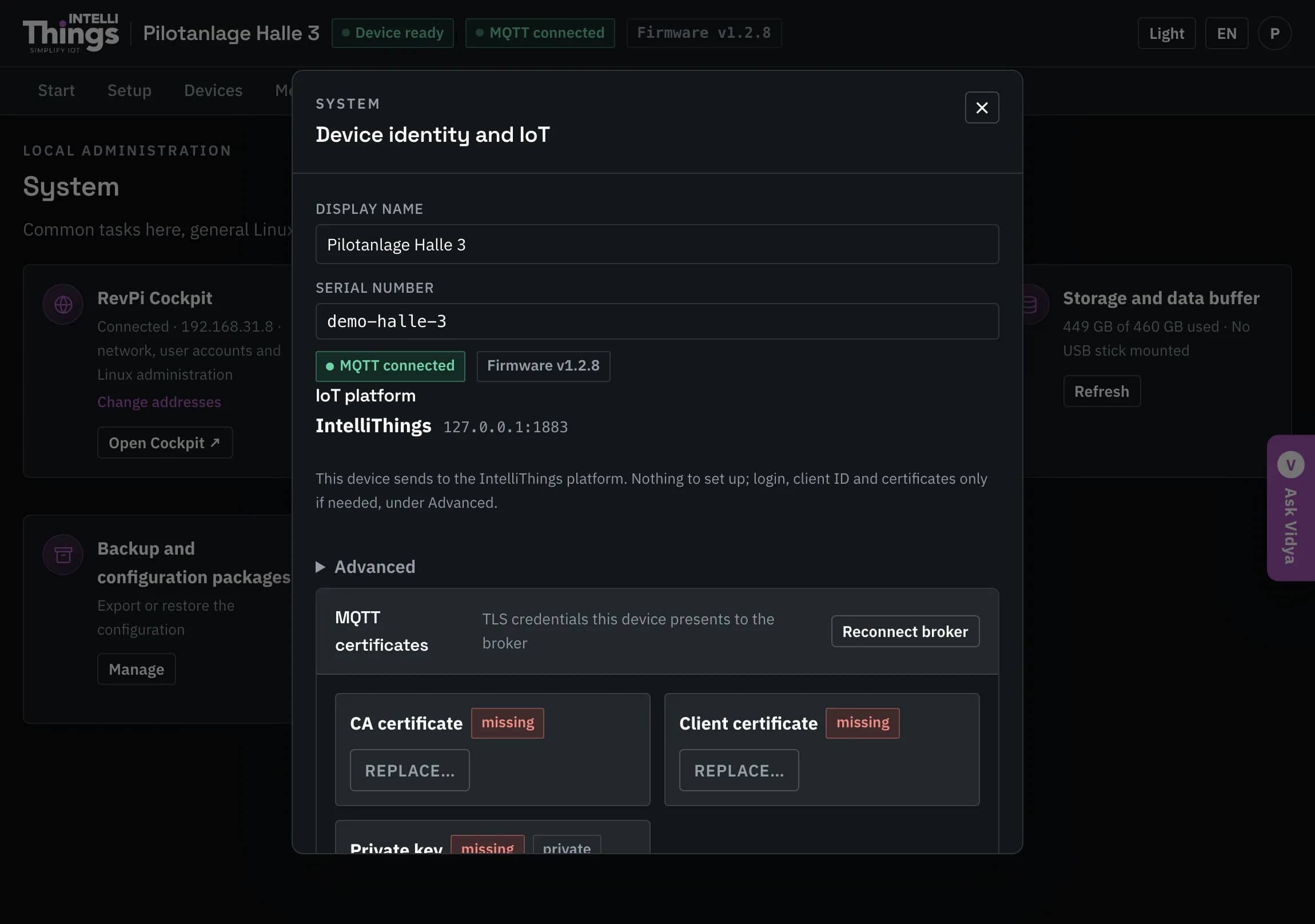
- Display name is the name shown in the dashboard header and in intelliThings CORE.
- Serial number identifies the RevPi to the platform. Changing it causes the platform to treat the RevPi as a new device, breaking the link to its history. Only change it during initial setup.
- Certificates are used for an encrypted platform connection. Upload the three files provided for this connection, then click Reconnect broker to reconnect to the platform’s MQTT server. The dashboard lists the installed files and their expiry dates so you can replace them before they expire.
Firmware updates
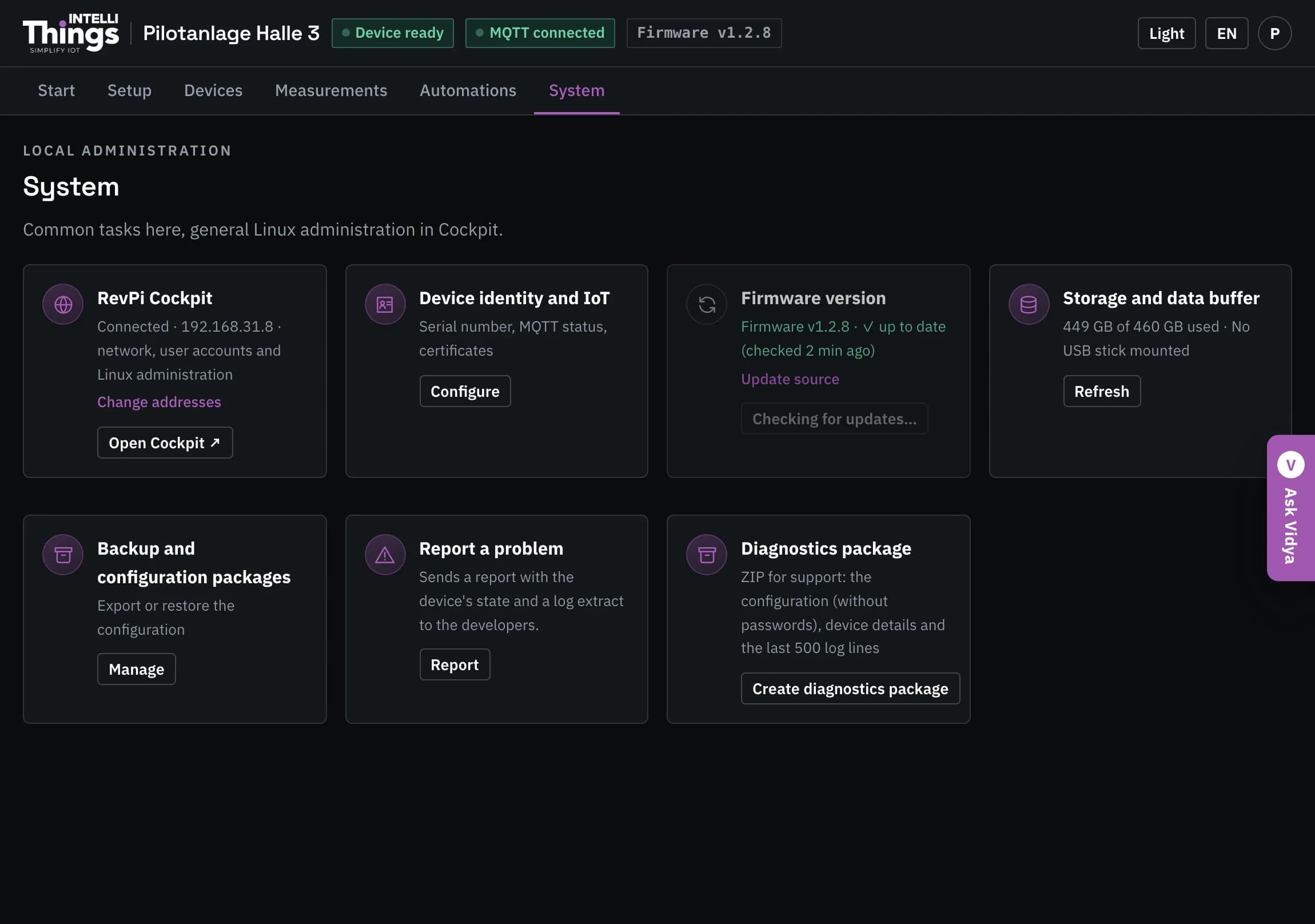
The RevPi automatically checks for updates once a day. The Firmware version card shows ✓ up to date or offers an available version. Click Check for updates now to check immediately.
Install updates automatically is enabled on delivery. While it is enabled, a new version is installed as soon as it is found.
Installing an update restarts the RevPi and interrupts readings from connected equipment for about one minute. If the update fails, the RevPi automatically restores the previous version. Settings and certificates remain unchanged.
If you need to schedule this interruption, clear Install updates automatically. The card will still notify you when a version is available. Click Update to … to install it at a suitable time.
Storage
The Storage and data buffer card shows system disk usage and whether the USB storage for camera recordings is mounted, meaning it is available to the RevPi.
Camera recordings are never deleted automatically. When the USB storage is full, recording stops and you must free up space manually.
Backup and restore
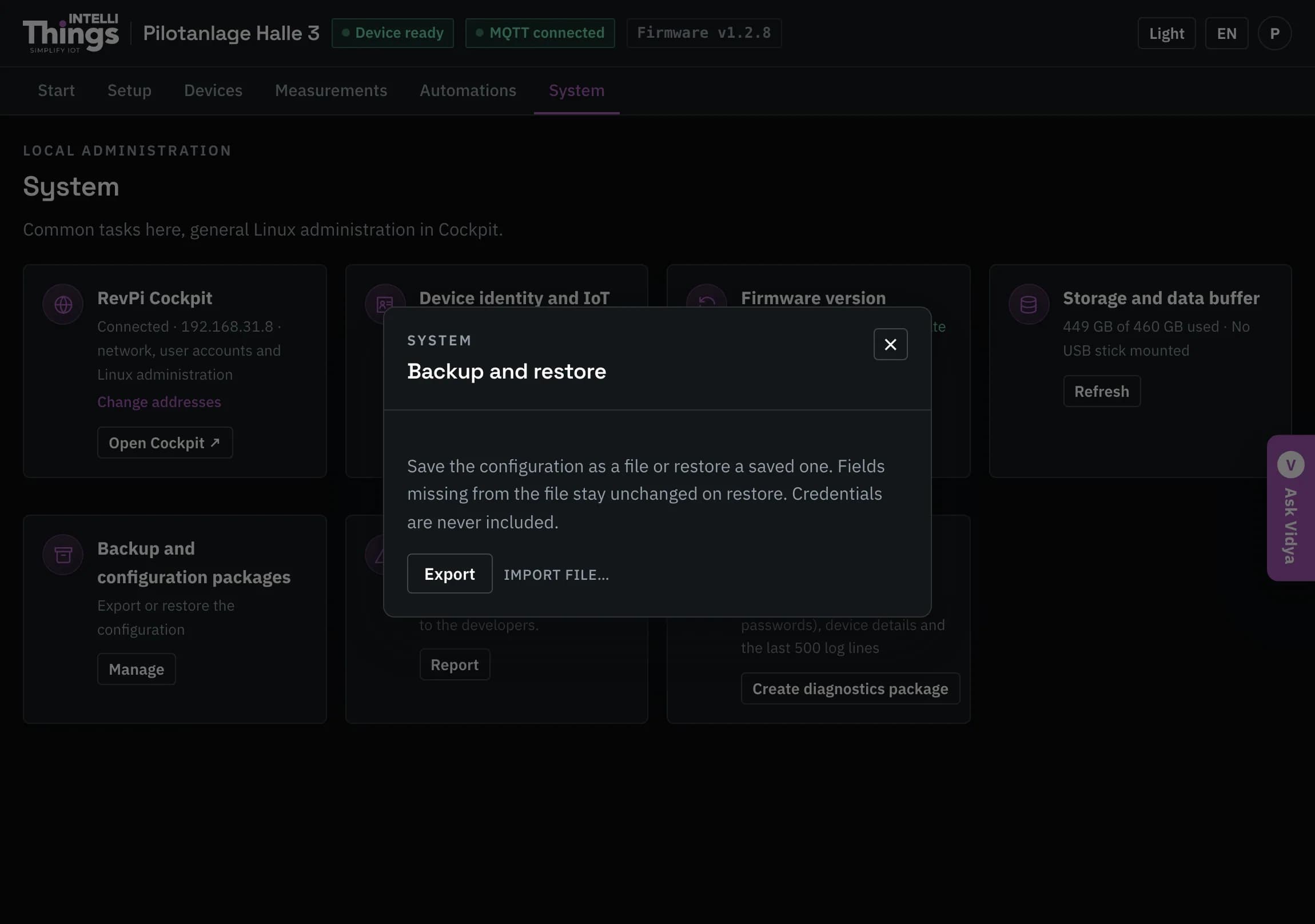
- Export downloads the configuration as a file. Passwords, tokens and certificates are never included. Export a backup before major changes and keep a copy for each system.
- Import file… imports a saved configuration and merges it with the current configuration. Importing an older backup does not remove newer settings. Invalid backup files are rejected with an explanation.
Report a problem
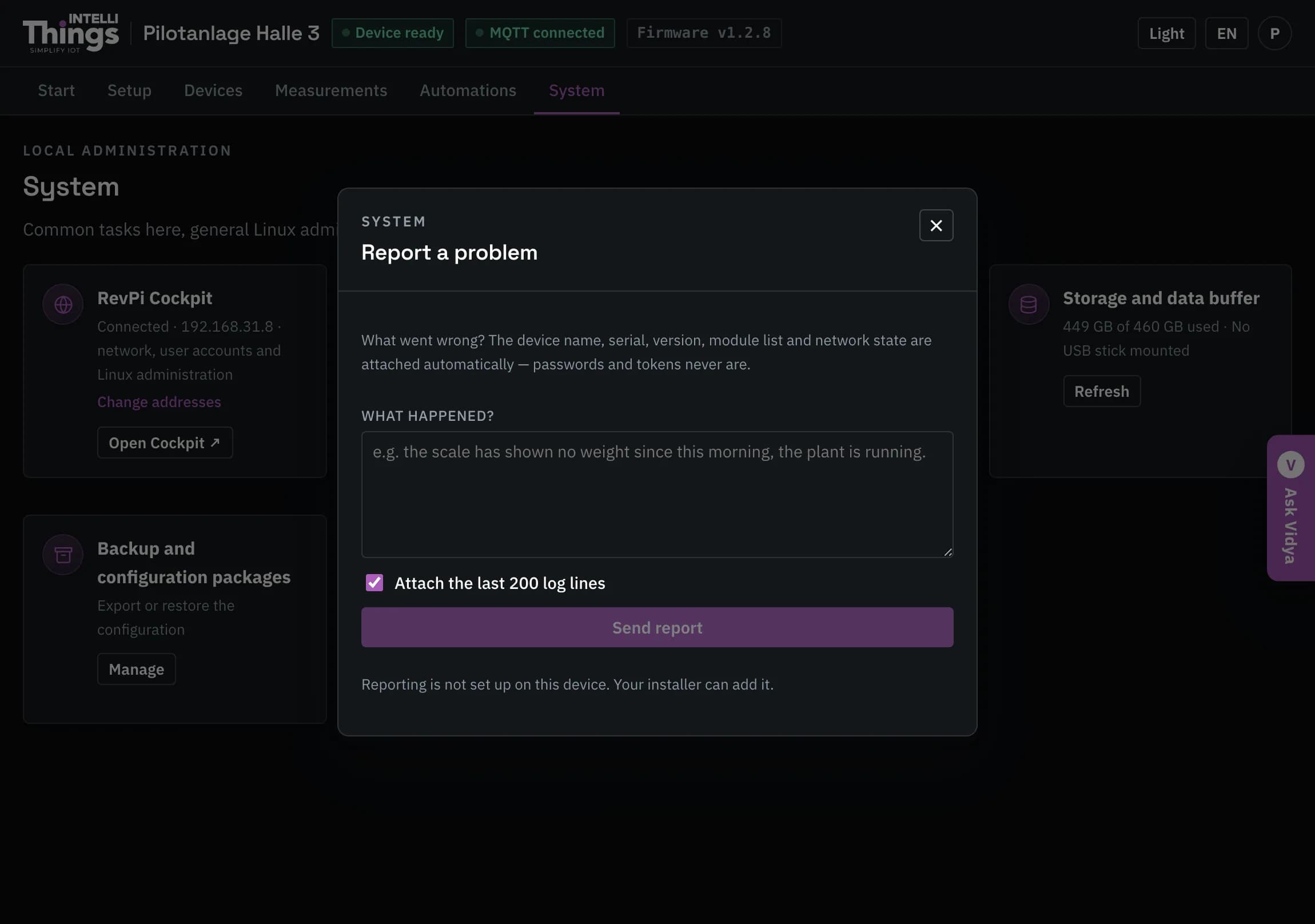
Describe the problem and click Send report. The report includes:
- Device name and serial number.
- Firmware version and module list.
- Network status.
- The last 200 lines of the RevPi’s log, if the log option remains selected.
These details help support investigate the problem without requesting them separately. Passwords and tokens are never included.
If reporting is not configured on this RevPi, download a diagnostics package and attach it to an email to support.
The card also shows whether the firmware has restarted unexpectedly, for example “The firmware restarted by itself 2× since boot”. Report these restarts so support can investigate; a crash cannot submit its own report.
Diagnostics package
Click Create diagnostics package to download a ZIP file containing:
- The configuration, with every password and token replaced by asterisks.
- A snapshot of the RevPi’s firmware version, modules, connection status and CPU, RAM and disk information.
- The last 500 lines of its log.
The file is downloaded to your computer. It is not sent to support automatically; attach it to an email or support ticket when needed.