

MQTT Explorer
Use the MQTT Explorer to view live messages from your devices in real time.
The MQTT Explorer lets you view and inspect live MQTT messages sent by your devices. It is a diagnostic tool that helps you verify that devices are publishing data correctly and that topics and payloads match your expectations.
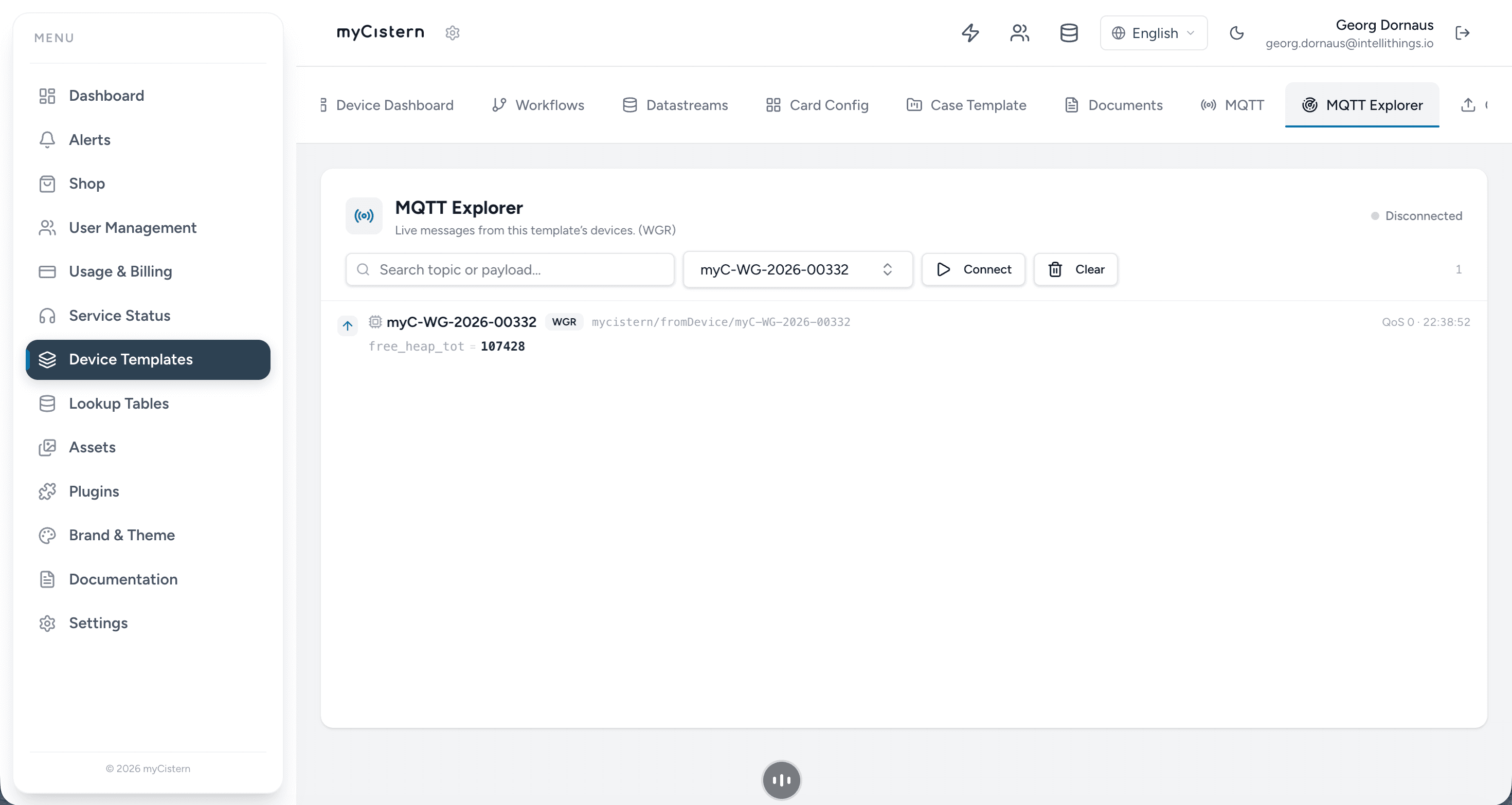
Access the MQTT Explorer
- Navigate to Device Templates in the left sidebar.
- Select the desired device template.
- Click the MQTT Explorer tab in the top navigation bar.
MQTT Explorer Interface
The MQTT Explorer provides the following controls and information:
Connection Controls
| Control | Description |
|---|---|
| Status Indicator | Shows the current connection state — Connected or Disconnected. |
| Connect | Establishes a WebSocket connection to the MQTT broker for the selected device. |
| Clear | Clears all displayed messages from the view. |
Search and Filter
Use the Search topic or payload field to filter messages. Enter a keyword, topic substring, or payload value to narrow down the displayed messages.
Device Selector
Use the dropdown to select which device's messages you want to view. The MQTT Explorer subscribes to the MQTT topics associated with the selected device.
Message List
Each message entry displays:
- Device Name — The name of the device that published the message.
- WGR Tag — Indicates the device group or region identifier (e.g.,
WGR). - Topic — The full MQTT topic path (e.g.,
mycistern/fromDevice/myC-WG-2026-00332). - QoS Level — The Quality of Service level at which the message was received (0, 1, or 2).
- Timestamp — The time at which the message was received.
- Payload — The decoded message content, displayed as key-value pairs where applicable.
Typical Use Cases
Verifying Device Connectivity
After powering on a device or configuring a new device template, open the MQTT Explorer and click Connect. If the device is online and correctly configured, you should see messages appear in real time.
Inspecting Payload Structure
Click on a message to view its full JSON payload. This helps you verify that the data types and field names match your expected schema before mapping them to Datastreams.
Debugging Topic Configuration
The topic path shown for each message helps you confirm that the device is publishing to the correct topic. If messages are not appearing, verify the topic pattern against your device's MQTT configuration.
Tips
- Use the search bar to quickly find messages containing specific values or topic patterns.
- Switch between devices using the device selector without leaving the MQTT Explorer.
- Click Clear to remove old messages and focus on new incoming data.
- The MQTT Explorer maintains a live connection as long as the tab is open. Messages are displayed in chronological order.