

Documents
Attach instruction manuals and custom documents to your device templates for easy access by team members and operators.
The Documents tab lets you attach instruction manuals, datasheets, and custom documents to your device templates. This centralizes all relevant documentation for a specific device type and makes it accessible to authorized team members.
What You Can Do
- Upload instruction manuals — PDFs such as quick-start guides, operation manuals, or maintenance instructions.
- Attach custom documents — Any file up to 50 MB, for example datasheets, compliance certificates, or internal notes.
- Organize documents into sections — Group related documents for better structure.
- Control visibility — Restrict document access to specific roles (Members, Moderators, Admins).
- Track versions — Assign a version label to each document so everyone always knows which revision is current.
Access Documents
- Open the CORE dashboard.
- Navigate to Device Templates and select the desired device type.
- Click the Documents tab in the device-type navigation bar.
You will see the list of documents organized by sections.
Upload a Document
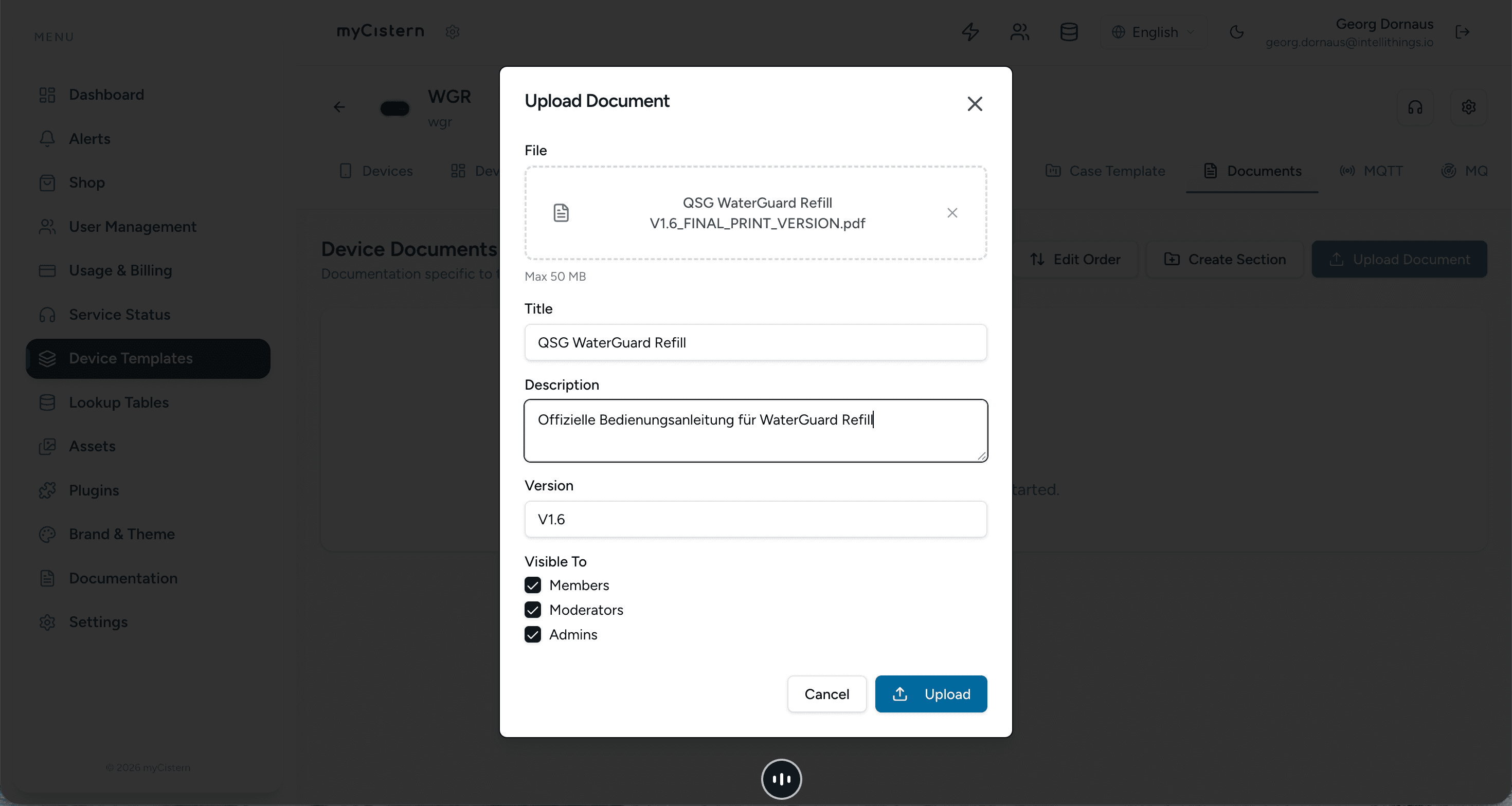
- In the Documents view, click Upload Document.
- Select the file from your computer (maximum file size: 50 MB).
- Fill in the metadata fields:
| Field | Description |
|---|---|
| Title | Display name for the document (auto-populated from the file name). |
| Description | Optional description, e.g. "Offizielle Bedienungsanleitung für WaterGuard Refill". |
| Version | Version identifier, e.g. V1.6. |
| Visible To | Select which roles can see this document: Members, Moderators, Admins. |
- Click Upload to save the document.
TIP: The Title field is auto-populated from the uploaded file name. You can edit it to a more user-friendly label.
Manage Documents
Once documents are uploaded, you can manage them from the document list:
| Action | Description |
|---|---|
| View | Preview the document directly in the browser. |
| Download | Download the document file to your device. |
| Edit | Modify the title, description, version, or visibility settings. |
| Delete | Remove the document from the template. |
Documents are displayed with their file name, size, version badge, visibility icons, and description.
Organize Documents into Sections
For templates with many documents, you can create sections to group related files:
- Click Create Section to add a new section.
- Name the section (e.g., "Operation Manuals", "Certification Documents").
- Drag and drop documents into sections to organize them.
- Click Edit Order to reorder documents within or across sections.
What's Next
- Learn about Datastreams — the variables that store and manage all device data.
- Explore Workflows — automate actions based on device data and events.
- Configure Device Dashboard widgets to visualize your device data.