
Device Dashboard
Manage the layout of your device dashboard. View and edit how information is displayed for each device.
CORE lets you manage the layout of your device dashboard. You can view and edit how information is displayed for each device.
View the Device Dashboard
- Open the Device Dashboard screen.
- Review the current layout of the dashboard for the selected device.
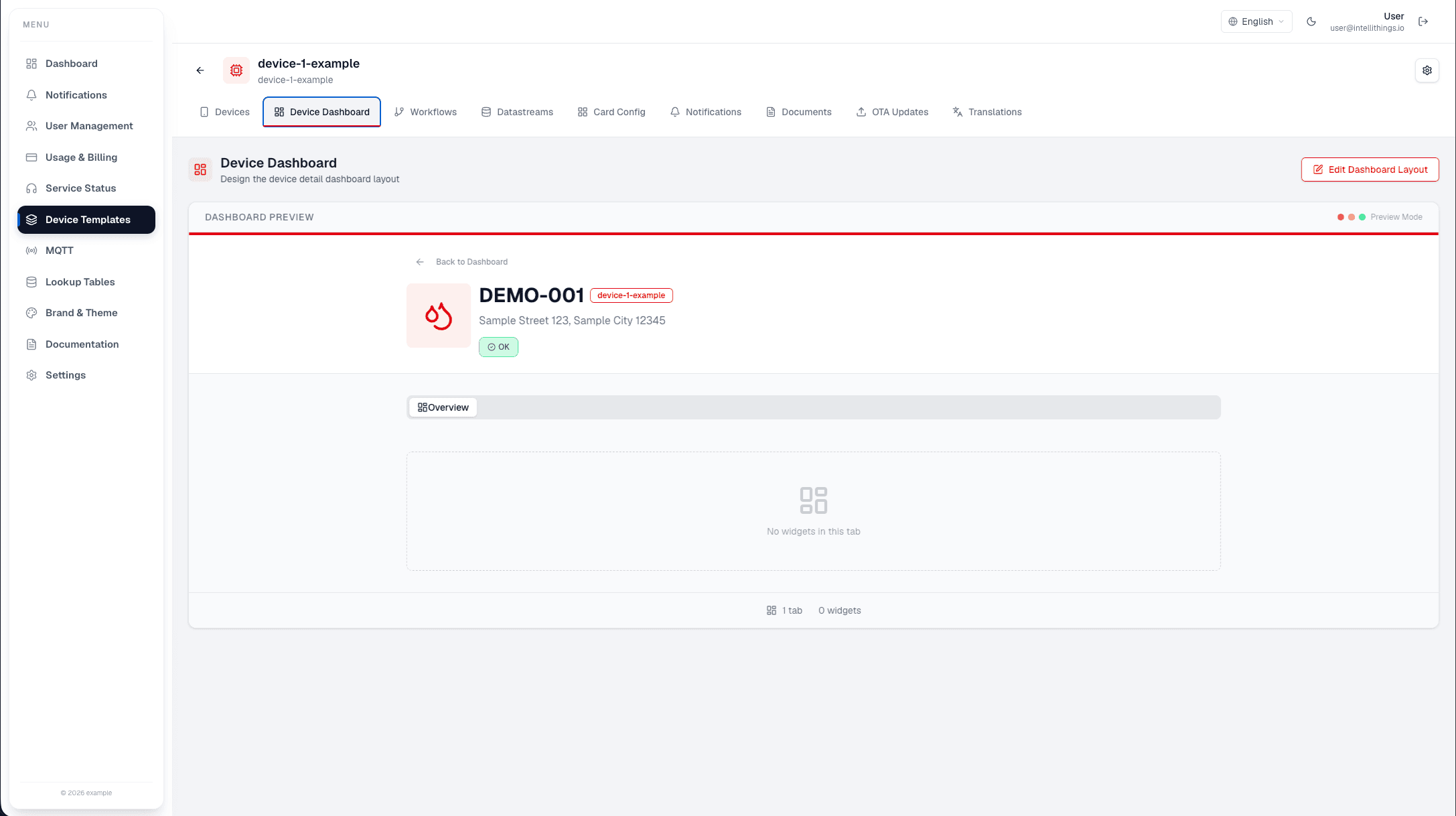
On this screen, you can see:
- Device ID: DEMO-001
- Status: Online
- Location: Barnes Street 123, Santa Clara, CA 95054
You can click Edit Dashboard Layout to customize the dashboard.
Edit the Dashboard Layout
- Click Edit Dashboard Layout.
- You are now in the Dashboard Editor.
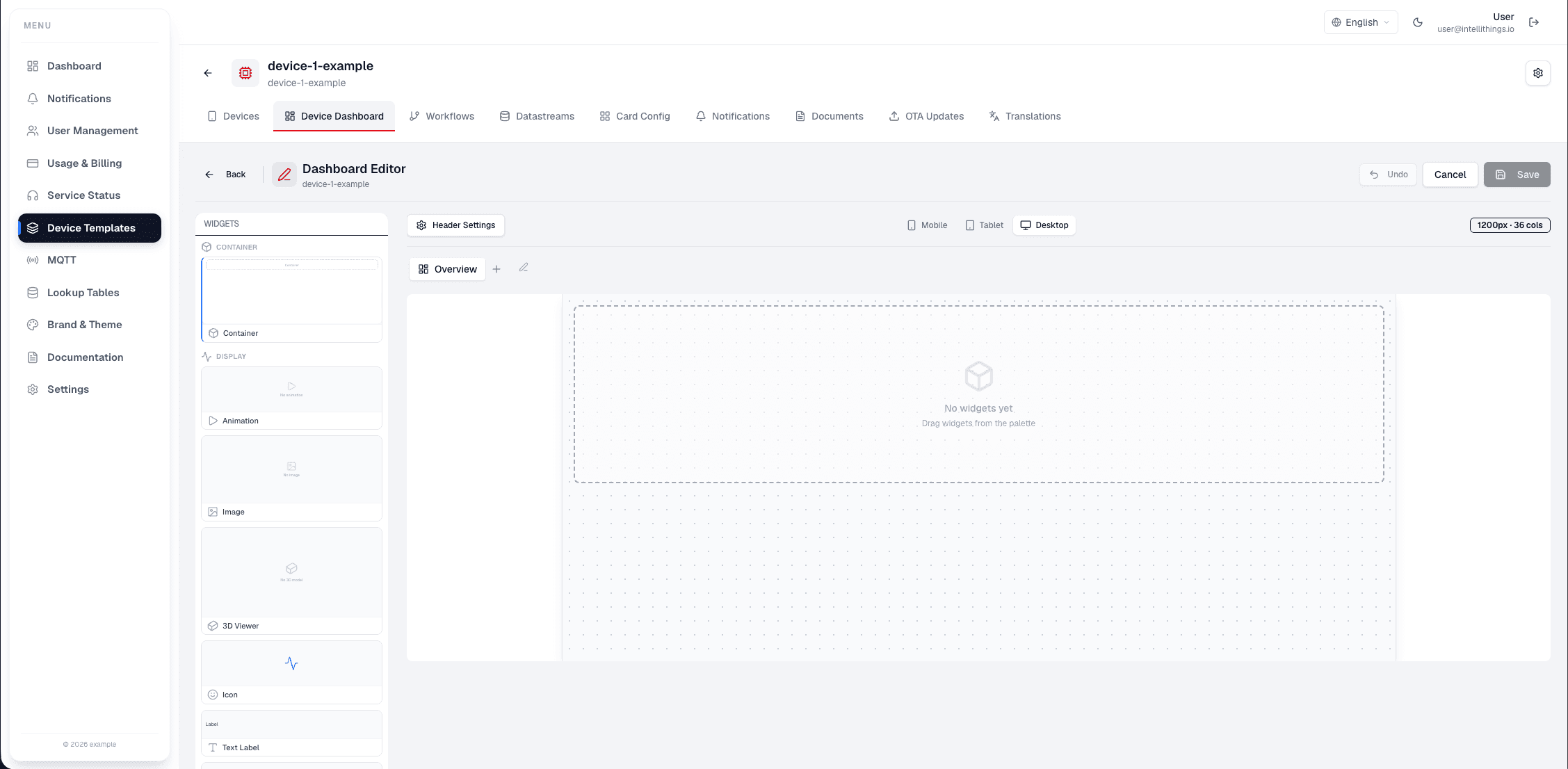
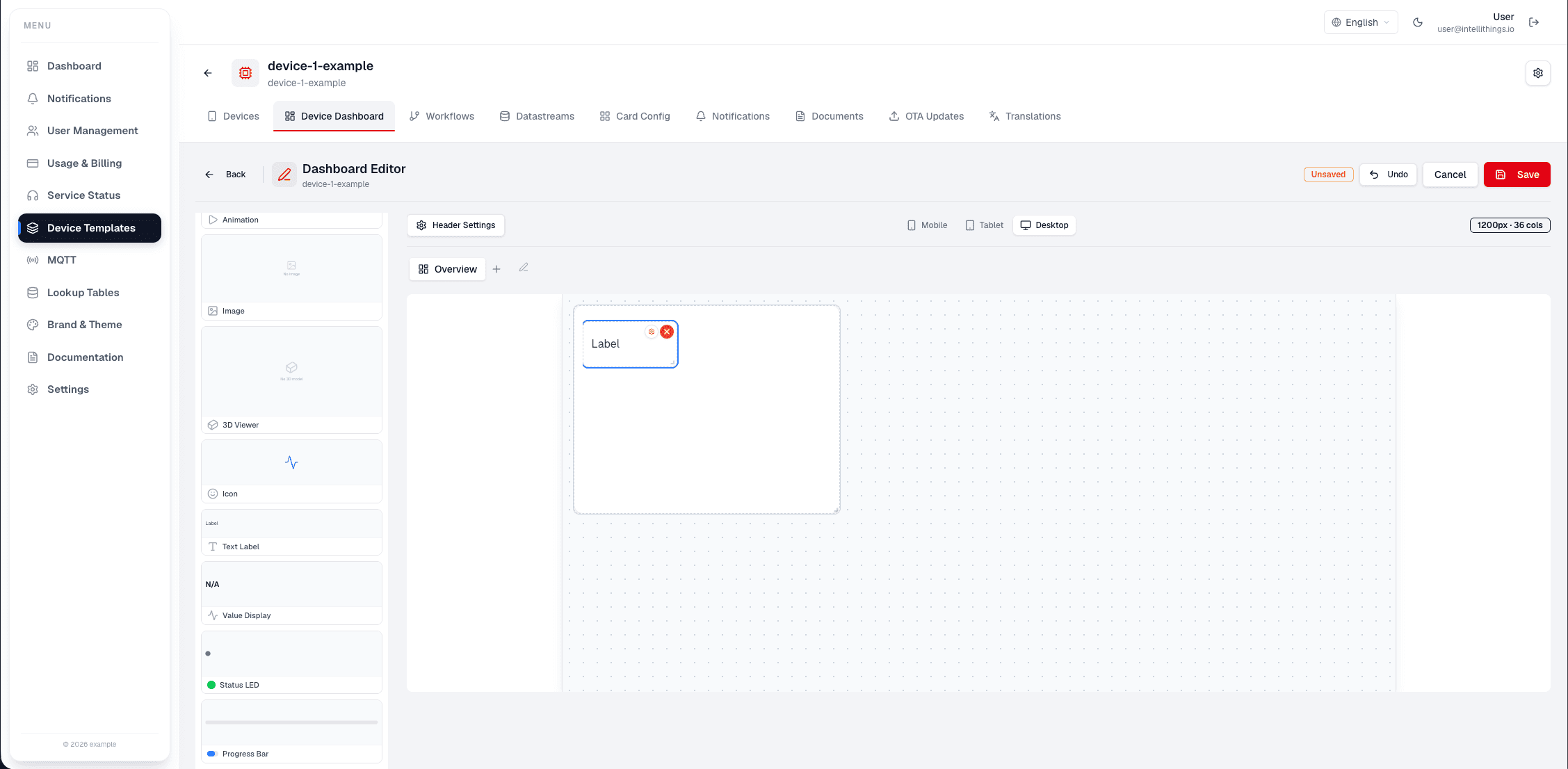
In the Dashboard Editor, you can:
- Drag and drop widgets to the canvas.
- Configure widget settings in the Widget Settings panel.
Customize Your Dashboard
- Drag widgets from the available list to the canvas.
- Use the Widget Settings panel to adjust each widget's properties.
- When finished, click Save to apply changes.
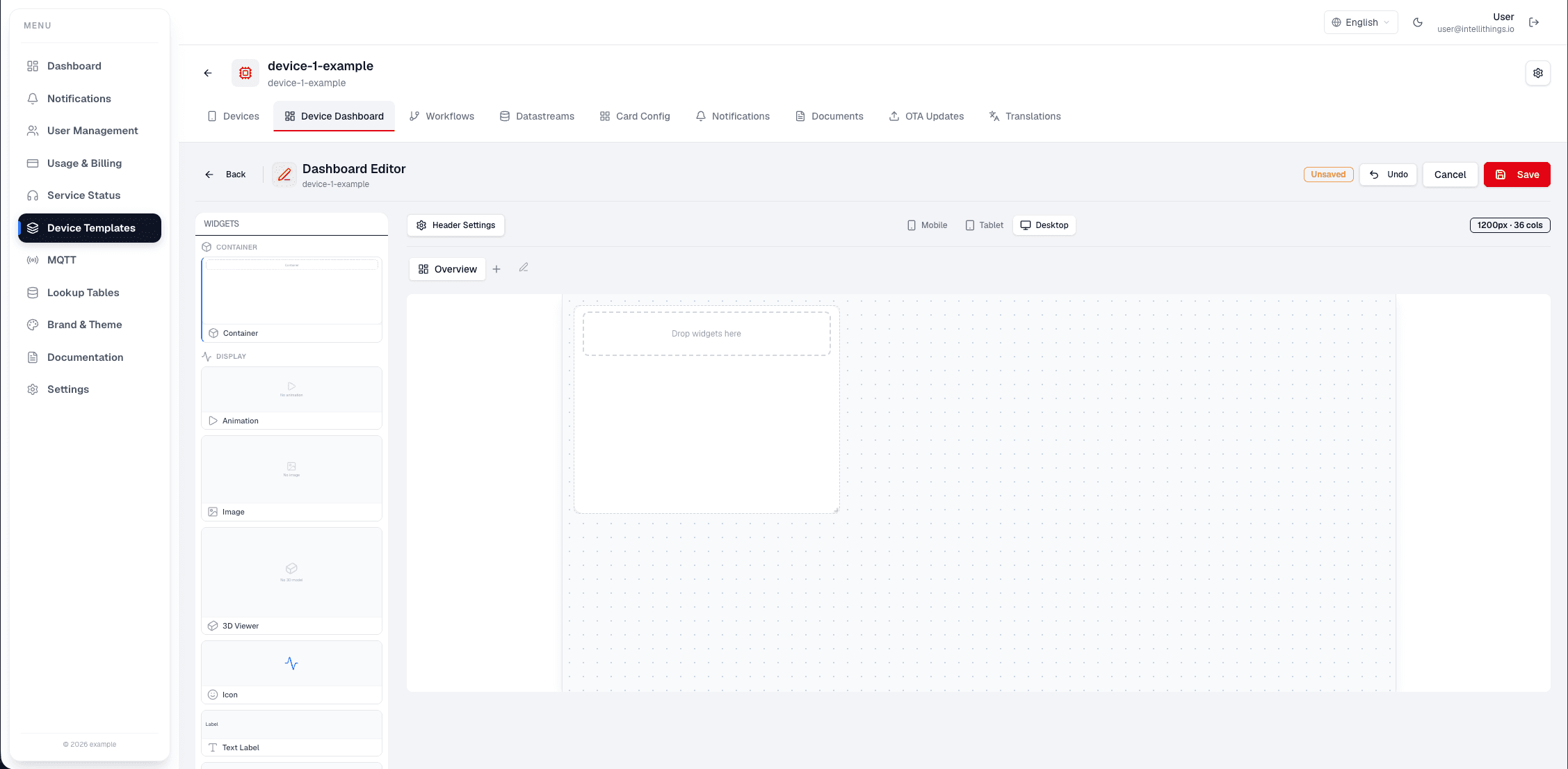
Use the widget list to add the components you need, then select each widget to configure its data source, layout, style, and behavior.
Save Your Changes
- After customizing your layout, click Save.
- Confirm that your changes are applied to the device dashboard.