

Animation
Add animated widgets to your device dashboard. Display dynamic visualizations or transitions based on data changes.
The Animation widget adds animated visual elements to your device dashboard. It displays dynamic visualizations or transitions that respond to data changes, making it ideal for drawing attention to important events or showing state changes in an engaging way. We recommend using this widget for visualizing device status changes, alert animations, or any scenario where animated feedback improves user awareness.
Step 1: Access the Animation Widget
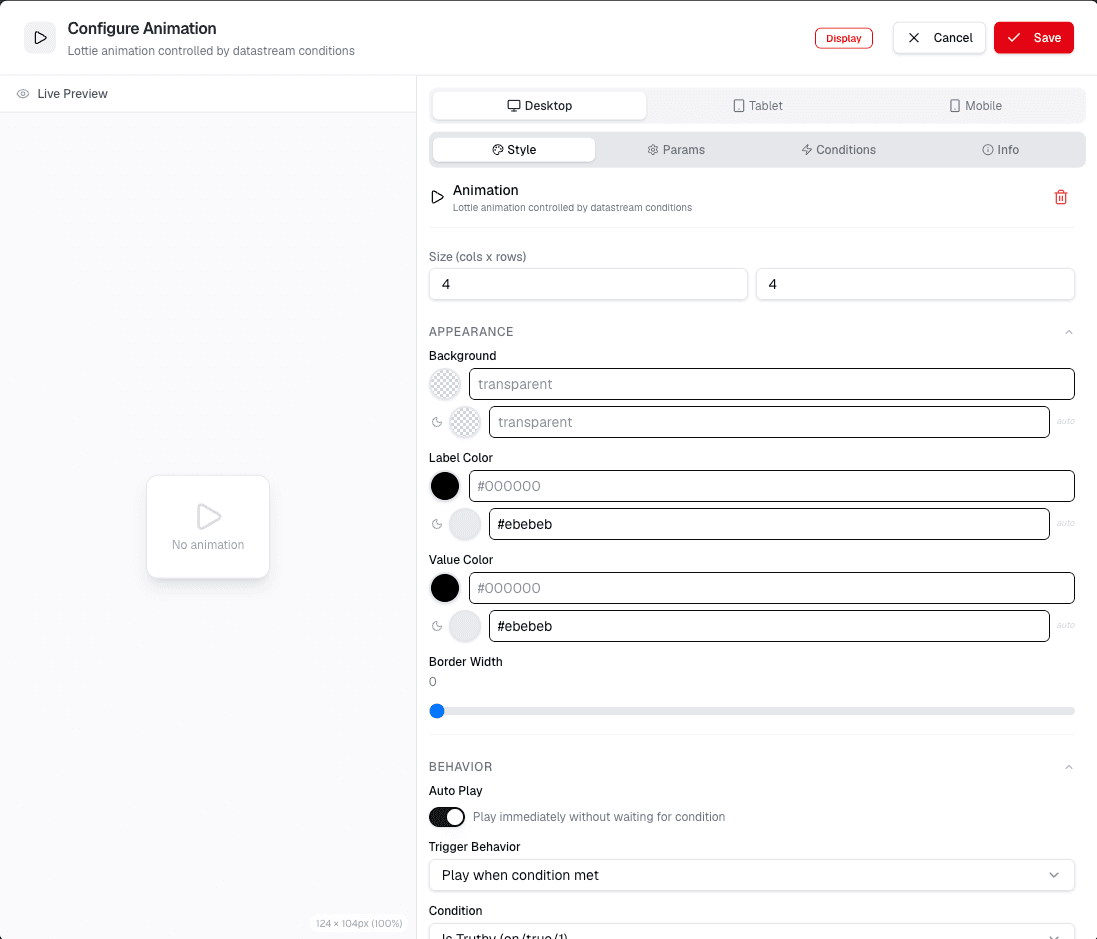
Review the screenshot and follow the visible controls. You will see the configuration options for the Animation widget.
Step 2: Configure Animation Settings
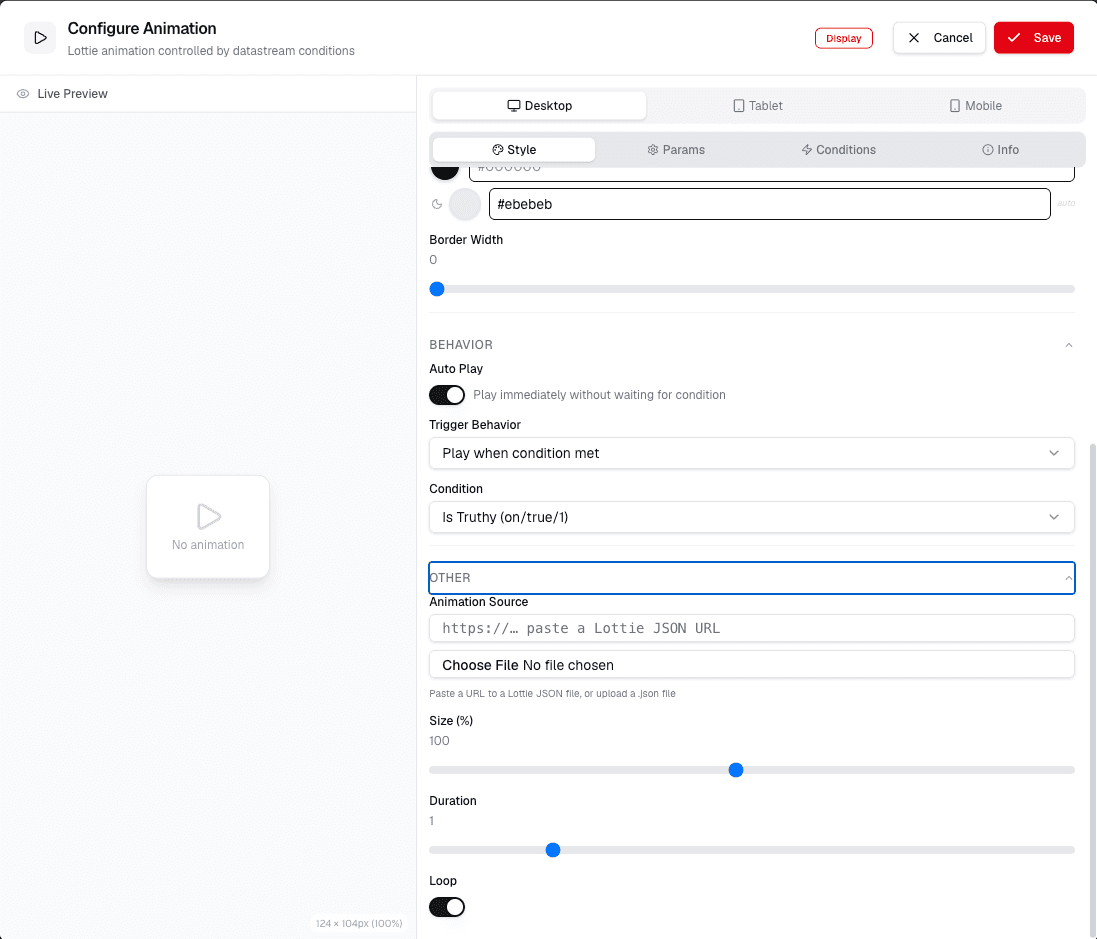
Review the screenshot and follow the visible controls. Here you can set up the animation behavior and properties.
Step 3: Apply and Preview
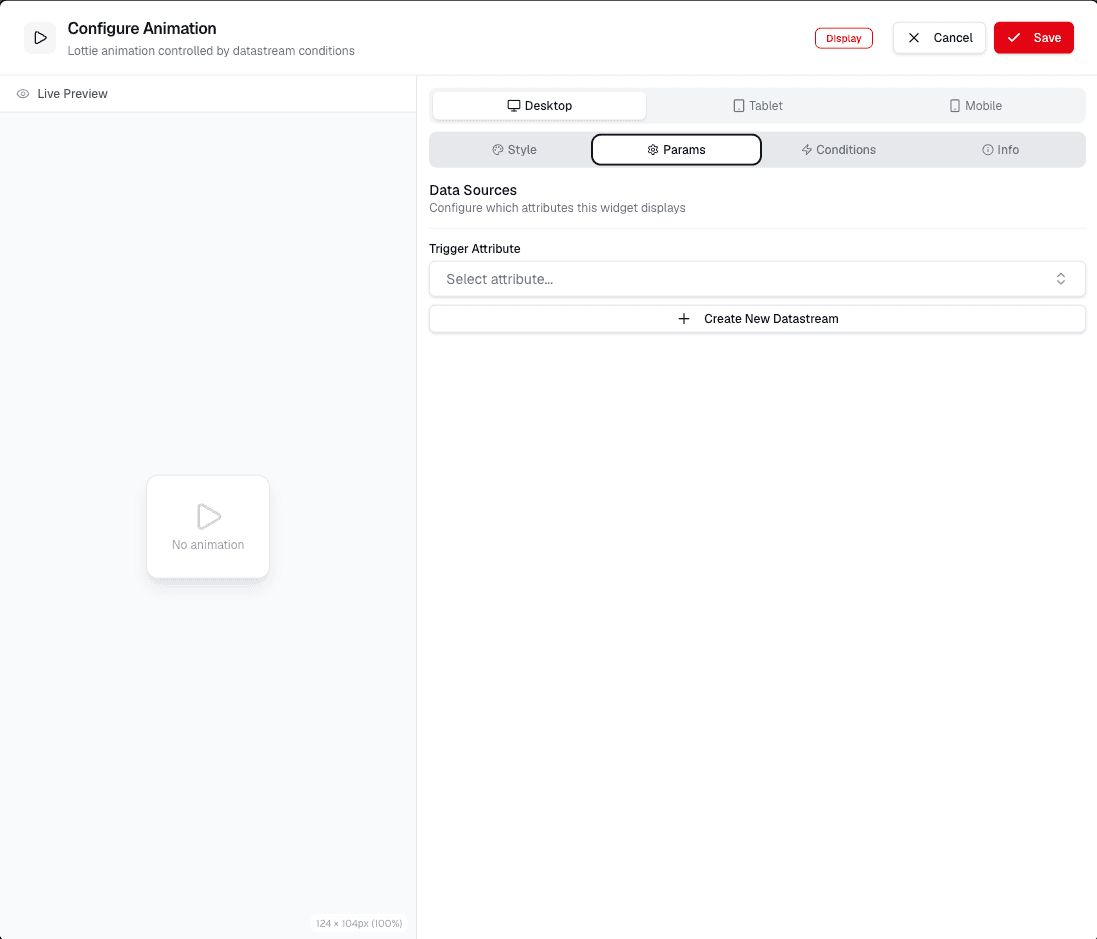
Review the preview area, confirm that the animation appears as expected, and save the widget when the configuration is ready.