

Gauge
Create a Gauge widget to display device data in a visual format. Configure value range and gauge types.
The Gauge widget displays a single numeric value in a visually intuitive circular or arc format. It supports configurable value ranges, units, and multiple gauge types including full circle and semicircle styles. We recommend this widget for displaying critical metrics such as tank levels, pressure readings, temperature values, or any single measurement that benefits from a quick visual overview at a glance.
Configure Gauge Settings
- Open the Device Dashboard.
- Select the Gauge widget from the list of available widgets.
- Click Configure to open the configuration screen.
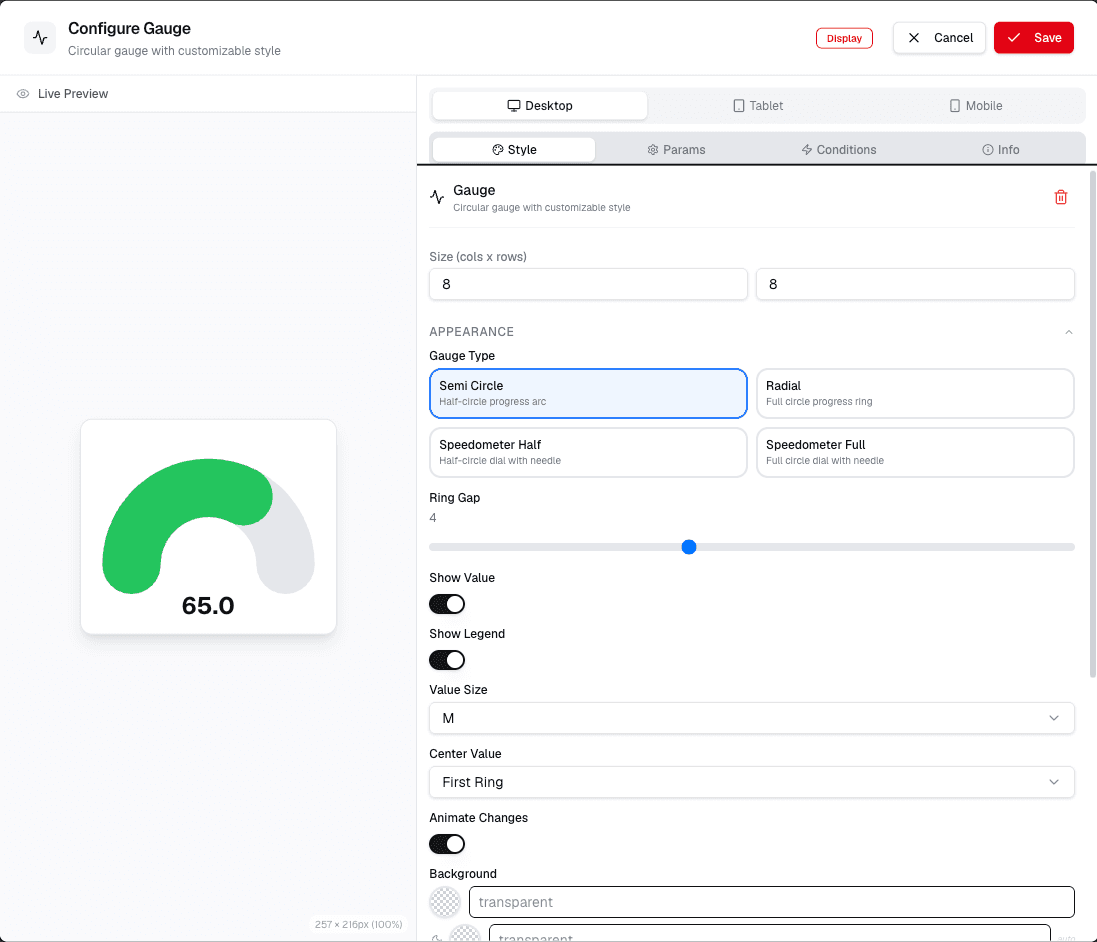
On this screen, you can enter the value, unit, and range values for the gauge.
- Value: Enter the value to display on the gauge.
- Unit: Select the unit of measurement for the value.
- Min Value: Set the minimum value for the gauge scale.
- Max Value: Set the maximum value for the gauge scale.
Click Save to apply your settings.
Advanced Gauge Configuration
- After entering basic settings, you can further customize the gauge.
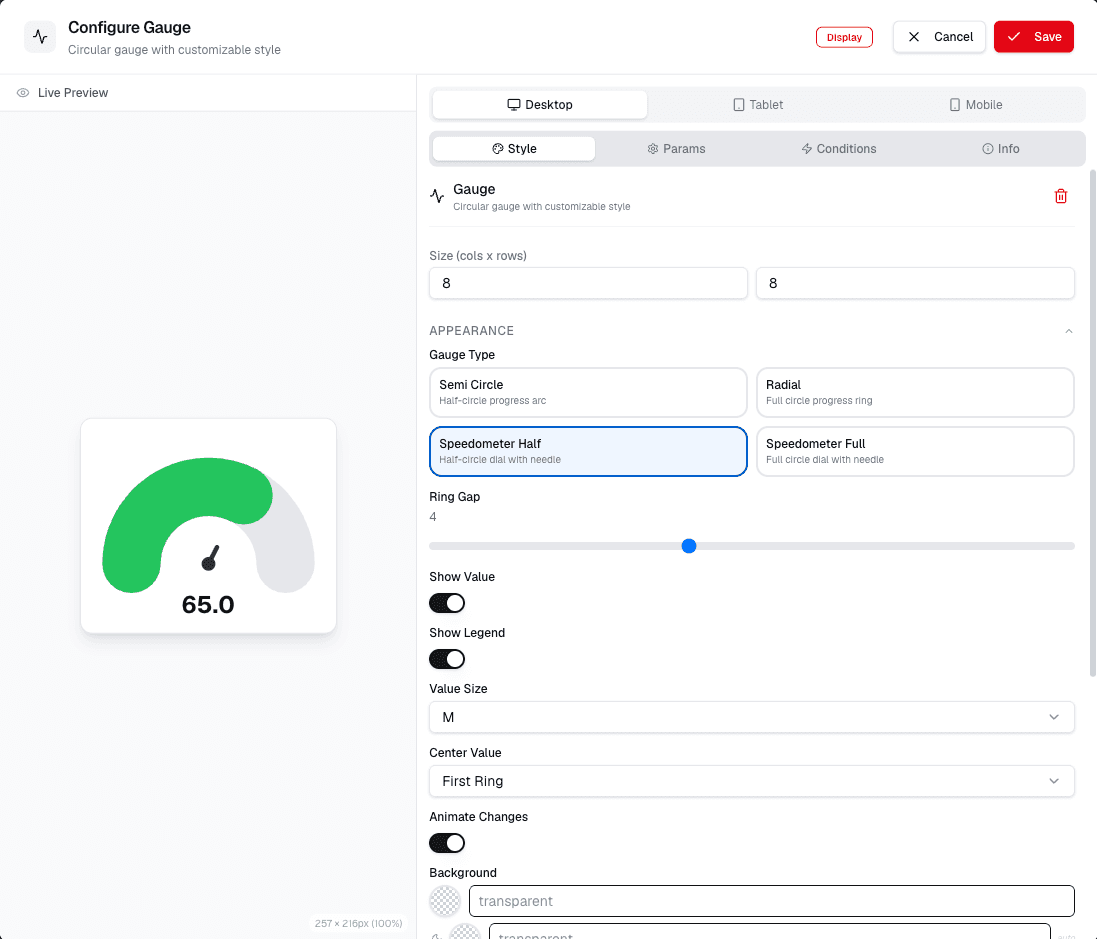
- Name: Enter a name for the widget.
- Widget Type: Select the type of gauge (e.g., Full Circle, Semicircle).
- Value: Enter the value to display.
- Unit: Select the unit of measurement.
- Min Value: Set the minimum value for the gauge scale.
- Max Value: Set the maximum value for the gauge scale.
- Range: Define the range of values for the gauge.
- Gauge Type: Choose the visual style of the gauge.
Click Save to apply your settings.
Use the available configuration tabs to adjust the gauge appearance, value range, conditions, and display behavior. Review the preview after changing these settings.
Set Data Source
- To connect the gauge to live data, configure the data source.
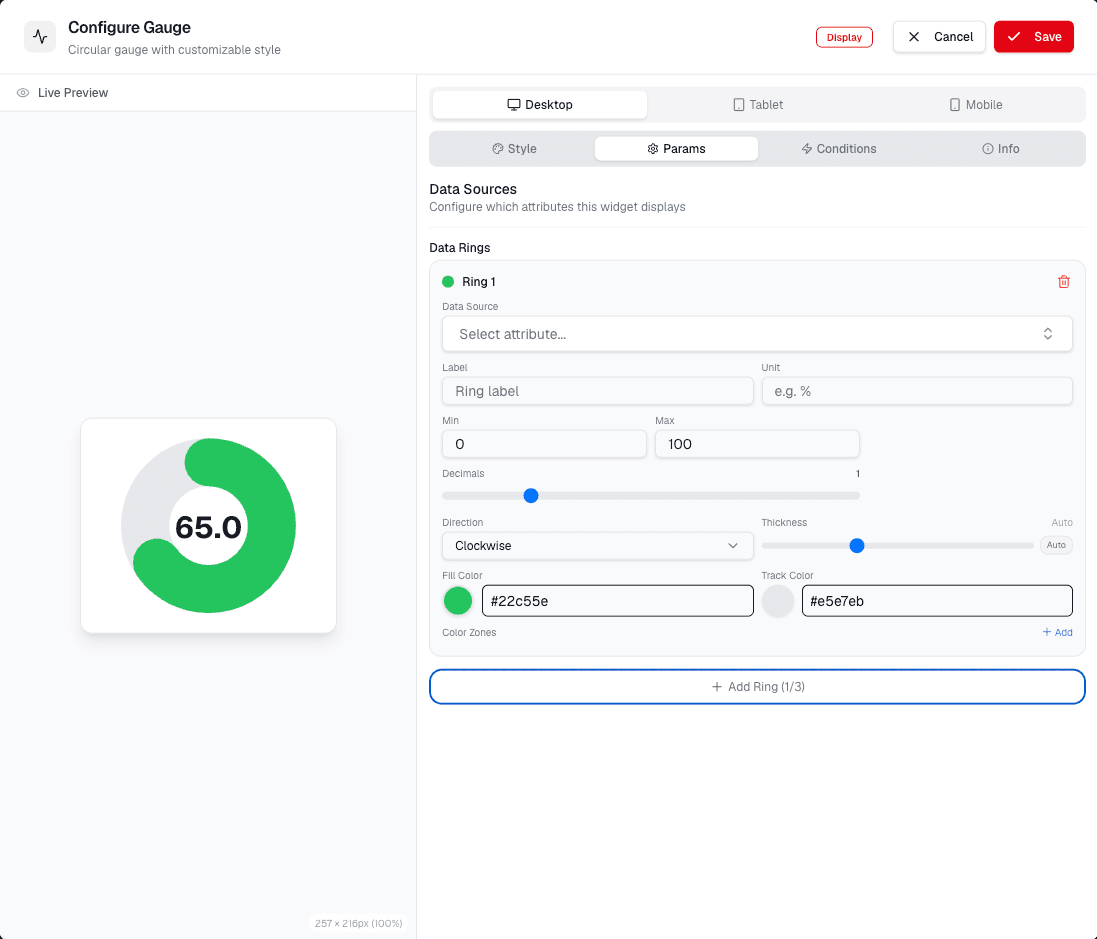
- Select data source: Choose the data source for the gauge.
- Data Type: Select the data type (e.g., numeric, string).
- Value: Enter the value to display from the selected data source.
Click Save to apply your settings.
Choose the source that supplies the numeric value for the gauge. Select a compatible data type so the gauge can render the value correctly.