

Container
Configure a container widget for your device dashboard. A container is a layout element that holds other widgets.
The Container widget serves as a layout element that groups and organizes other widgets on your device dashboard. It provides customizable borders, backgrounds, shadows, and padding to visually separate related widgets into cohesive sections. We recommend using this widget for organizing related controls and displays into logical groups, improving dashboard readability and creating a structured layout for complex monitoring setups.
Configure Container
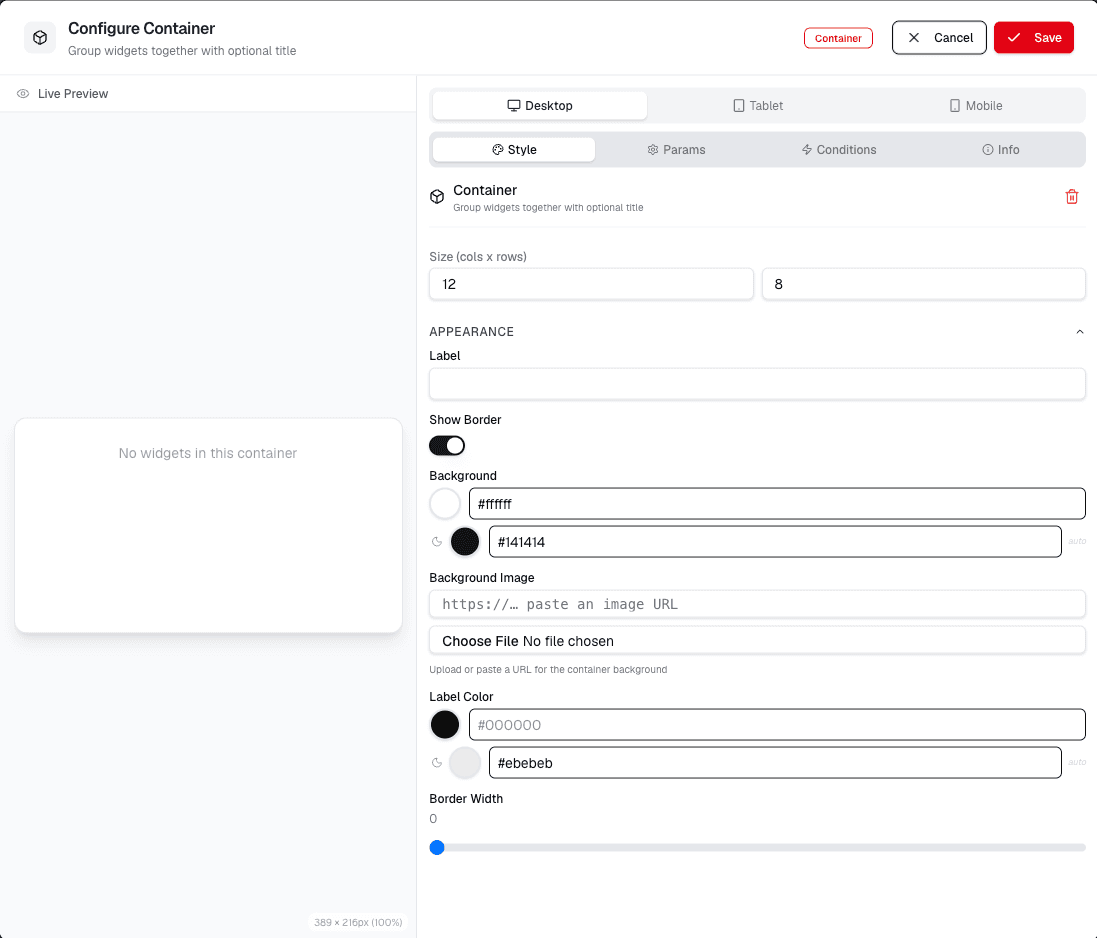
Open the Configure Container dialog to set up your container.
- Enter a name in the Container Name field.
- Select a type from the Container Type dropdown.
- Set the Background color or upload a Background Image.
- Adjust the Border settings, including color and radius.
- Enable or disable Box Shadow and set its properties:
- Box Shadow Color
- Box Shadow Blur
- Box Shadow Spread
- Box Shadow Position
Review the Preview tab to see how your container looks.
Click Save to apply your settings or Cancel to discard changes.
Choose the container type that matches the layout you want, then place related widgets inside the container so the dashboard remains organized.