

Dropdown Menu
Add a dropdown menu widget to your device dashboard. Select from static or dynamic options.
The Dropdown Menu widget provides a compact selection control that lets users choose from a list of static or dynamic options. It conserves space on the dashboard while offering flexible configuration for both fixed and data-driven option lists. We recommend this widget for selecting operating modes, switching between predefined configurations, or choosing from dynamically-updated data sources such as device selection or preset profiles.
Configure Dropdown Menu
- Open the Device Dashboard in your device template.
- Click the + Add Widget button.
- Select Dropdown Menu from the list of available widgets.
- Click the Configure button to open the configuration panel.
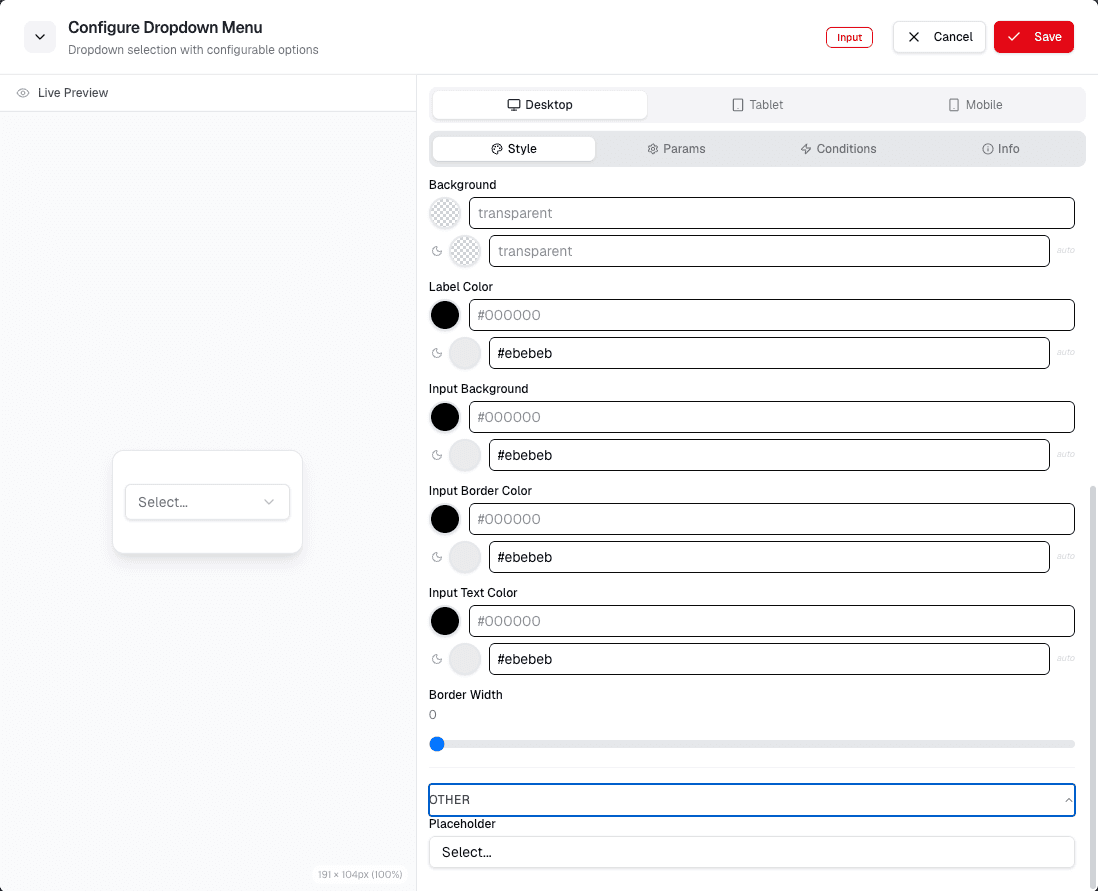
On this screen, you can set the following:
- Name: Enter a name for the dropdown menu.
- Options: Define the list of options that will appear in the dropdown.
- Base With: Set the base value for the dropdown.
Click Save to apply your settings.
Define the dropdown items with clear labels and values. Use placeholder text only when it helps users understand what to select.
Select Data Source
- After saving, return to the dropdown menu configuration.
- Click Choose Data Source.
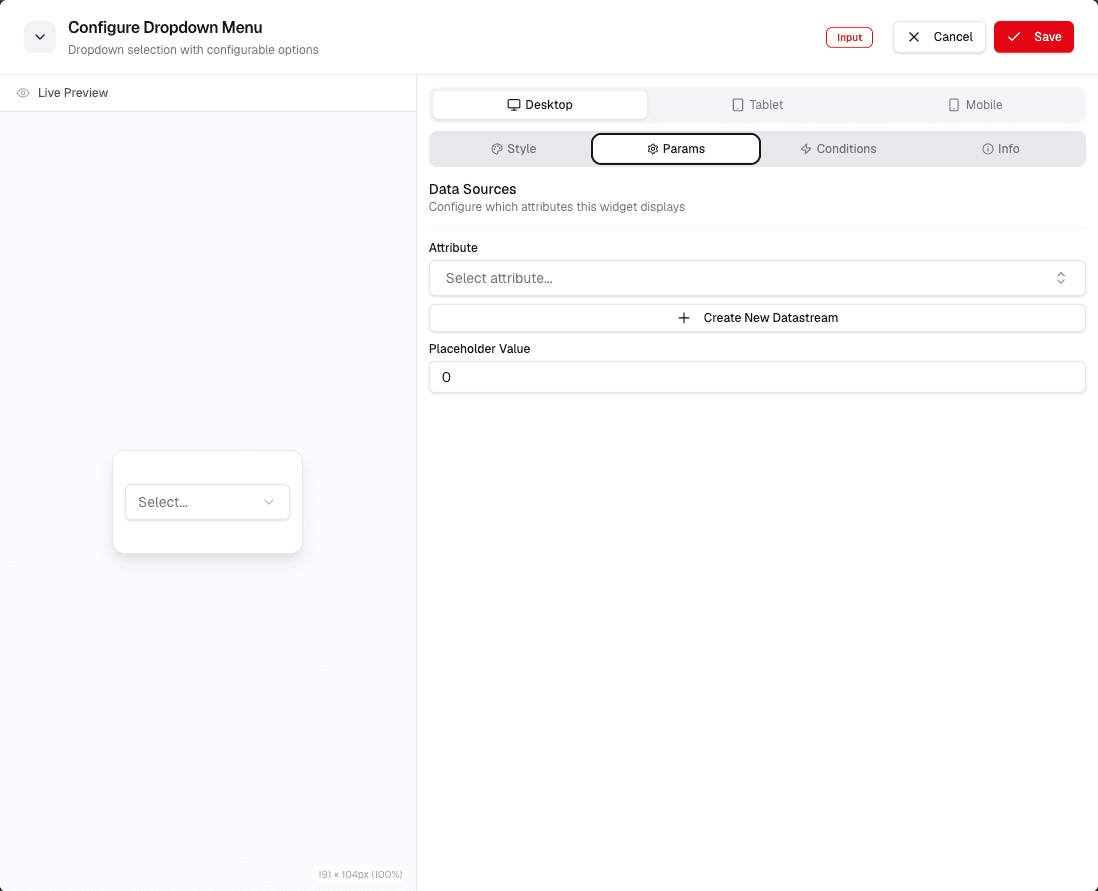
On this screen, you can:
- Select Data Source: Choose the data source for the dropdown menu.
- Select Options: Choose which options to display.
Click Save to confirm your selections.