

Bidirectional Level
Configure a bidirectional level widget to display real-time directional data such as airflow or gate states.
The Bidirectional Level widget displays real-time data with directional indicators, showing values that can move in two directions from a central point. It provides a clear visual representation of bidirectional measurements such as airflow direction, gate states, or any parameter with positive and negative ranges. We recommend this widget for applications involving dual-direction airflow monitoring, valve position indicators, or any scenario where understanding the direction and magnitude of a value is critical.
Configure Bidirectional Level Widget
Step 1: Open Widget Configuration
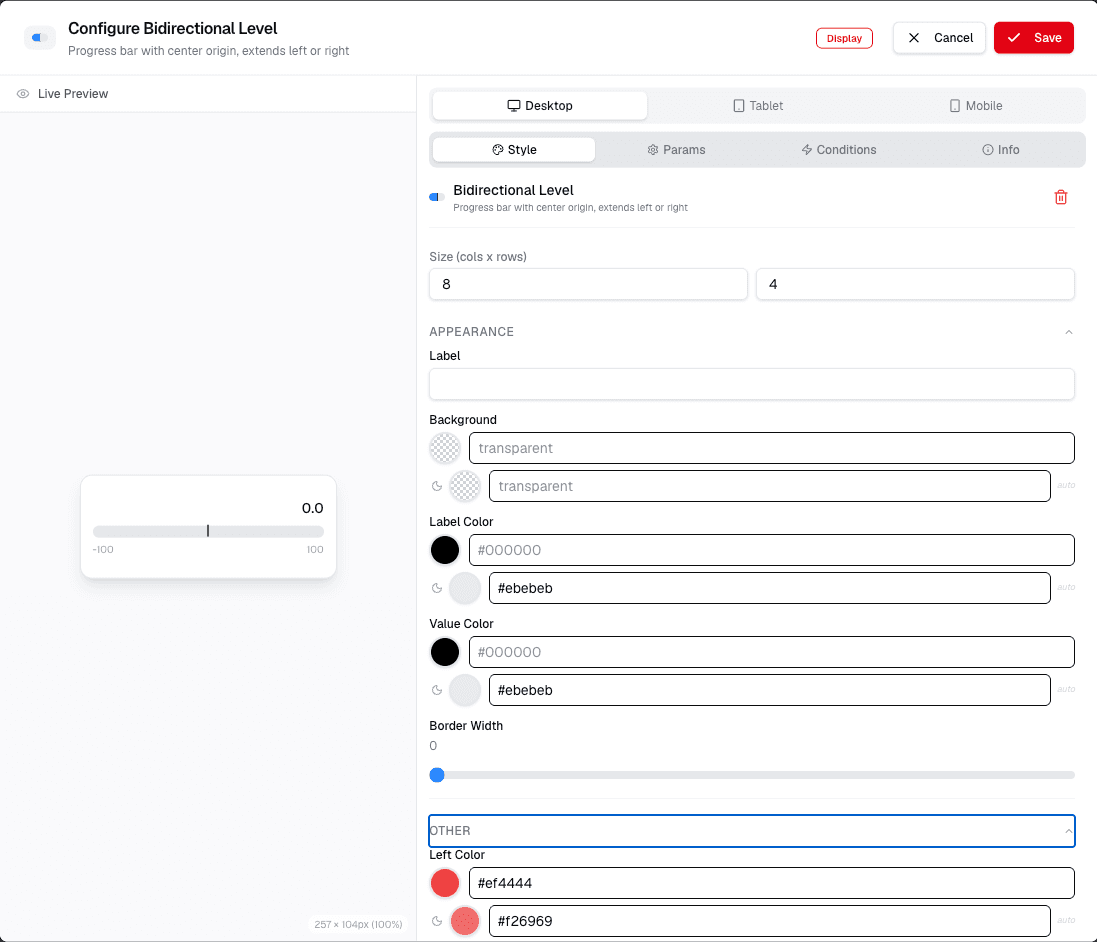
Review the screenshot and confirm the available options before publishing this page.
Open the widget settings panel and choose the value or data source that controls the bidirectional level display.
Step 2: Review Widget Settings
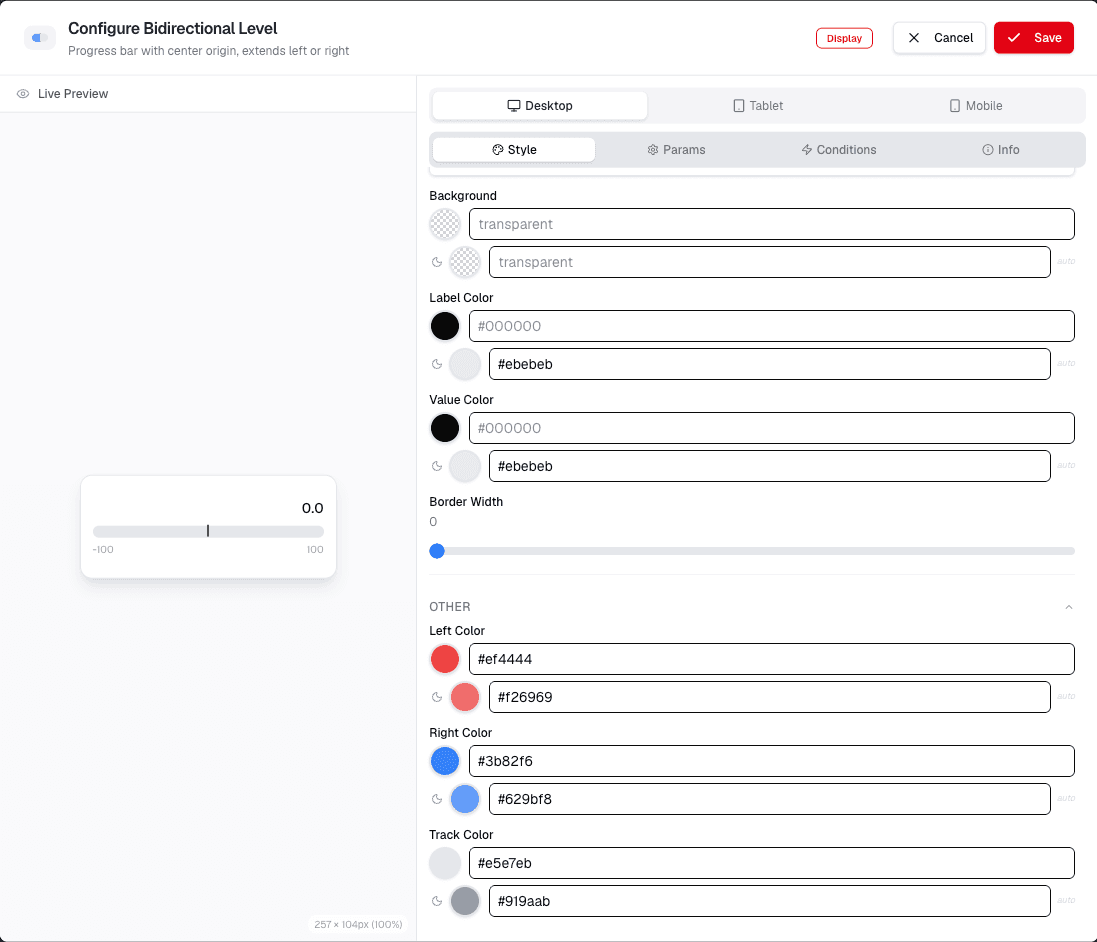
Review the screenshot and follow the visible controls.
Set the display range, orientation, label, and styling options before saving the widget.
Step 3: Set Widget Properties
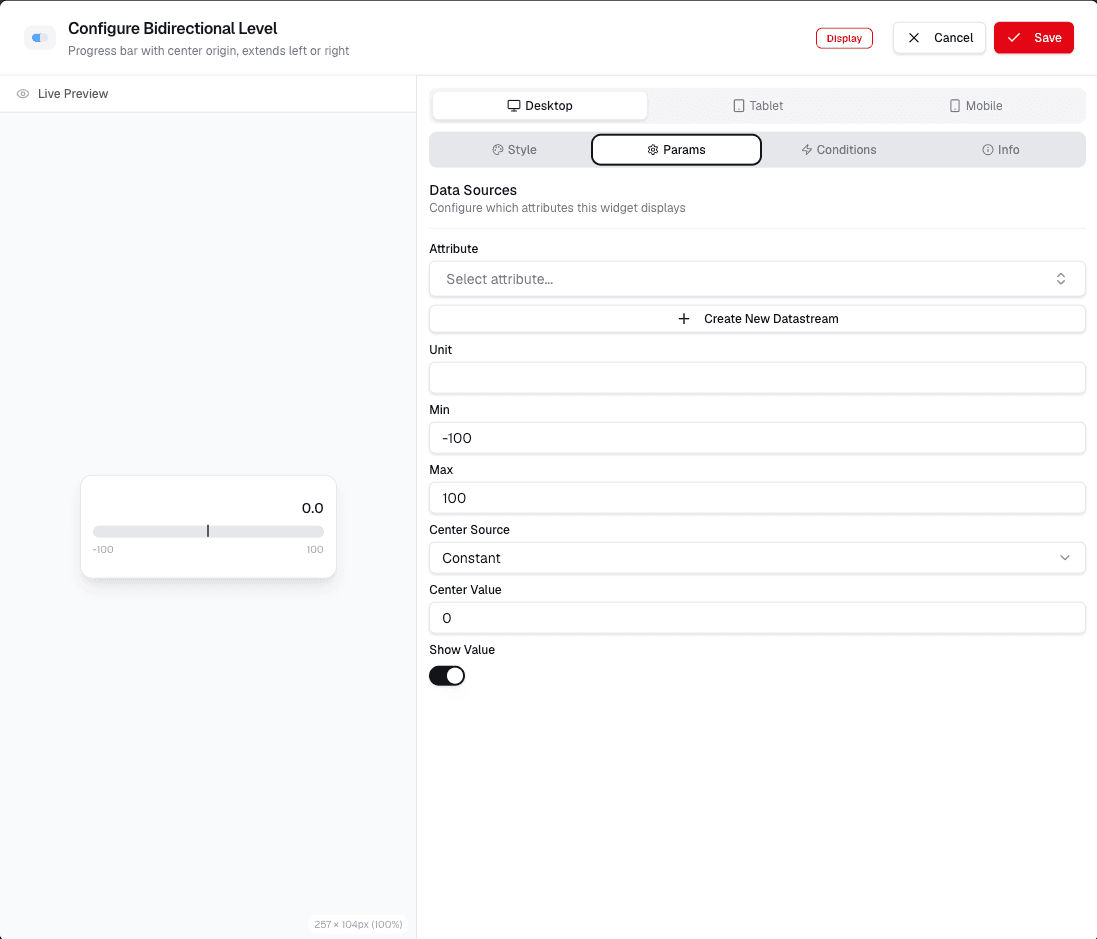
Open the Configure Bidirectional Level screen to set the widget properties.
You can:
- Select a Data Source.
- Select an Airflow option.
- Enter a value for HI.
- Enter a value for LO.
- Enter a value for Gate State.
- Enter a value for Value.
- Toggle the Show Value option.
Click Save to apply your settings.