

Schedule
Configure a schedule trigger to start workflows at specified intervals or times.
The Schedule trigger starts a workflow at specified intervals — such as every hour, every day, or at custom cron expressions. This is ideal for periodic tasks and time-based automation.
Overview
The Schedule trigger enables time-based workflow execution, allowing you to run workflows on a regular cadence without manual intervention.
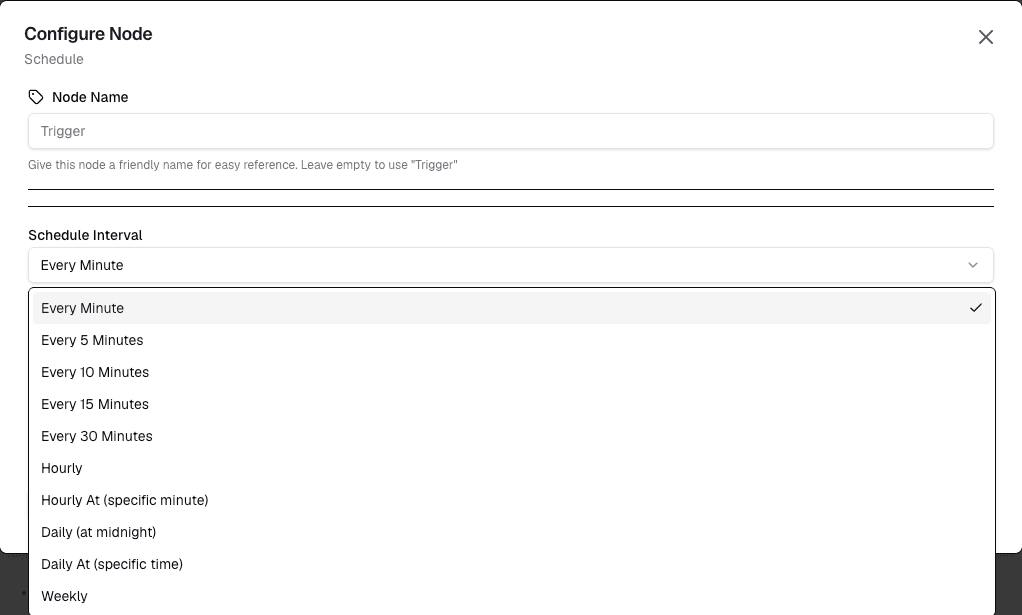
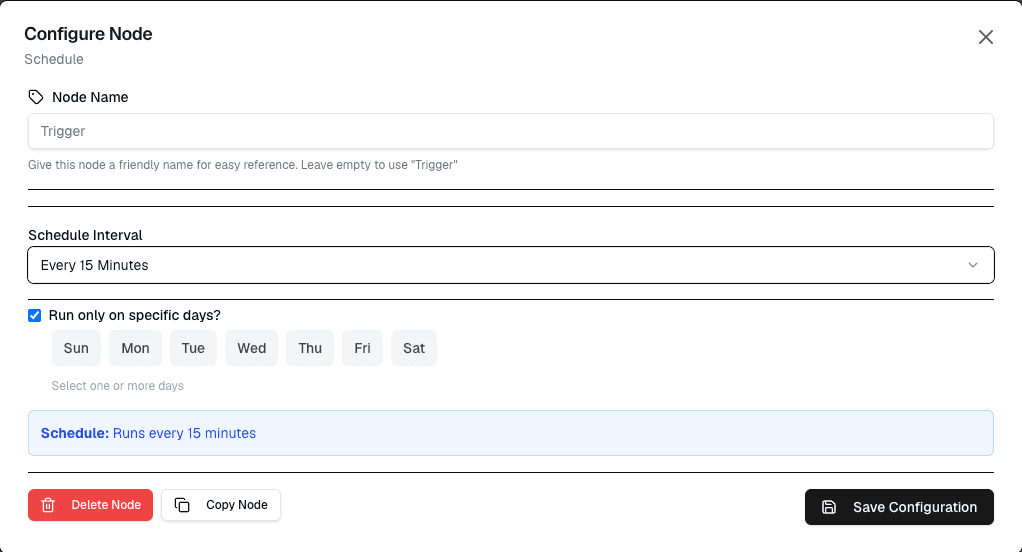
How It Works
- Configure the schedule using a cron expression or preset interval
- The platform automatically starts the workflow at each scheduled time
- The workflow runs to completion, then waits for the next scheduled execution
Configuration
| Setting | Description |
|---|---|
| Schedule type | Choose between preset intervals or custom cron expression |
| Cron expression | Define custom schedule using cron syntax |
| Timezone | Set the timezone for schedule evaluation |
Preset Intervals
| Interval | Description |
|---|---|
| Every minute | Runs once per minute |
| Every 5 minutes | Runs every 5 minutes |
| Every hour | Runs once per hour |
| Every day | Runs once per day at midnight |
| Custom | Define your own schedule |
Cron Expression
For advanced scheduling, use a cron expression with 5 or 6 fields:
┌───────────── second (optional)
│ ┌───────────── minute
│ │ ┌───────────── hour
│ │ │ ┌───────────── day of month
│ │ │ │ ┌───────────── month
│ │ │ │ │ ┌───────────── day of week
│ │ │ │ │ │
* * * * * *
Common Examples
# Every hour
0 * * * *

# Every day at 9:00 AM
0 9 * * *

# Every Monday at 8:00 AM
0 8 * * 1

# Every 15 minutes
*/15 * * * *

# First day of every month at 6:00 AM
0 6 1 * *
Use Cases
- Periodic reports — Generate and send reports at regular intervals
- Data aggregation — Aggregate data over time periods
- Cleanup tasks — Remove old data or reset device states
- Health checks — Periodically check device status and connectivity
- Scheduled maintenance — Run maintenance workflows at off-peak hours
Example: Hourly Temperature Report
Trigger: Schedule
  Interval: Every hour

→ Workflow gets temperature history for the past hour
→ Workflow calculates average, min, max
→ Workflow sends report via notification
Tips
- Use the timezone setting to match your operational hours
- Test schedules with frequent intervals first (e.g., every minute)
- Monitor execution logs to verify schedules are firing correctly
- Consider the impact of high-frequency schedules on system resources
Limitations
- Schedules are evaluated by the platform — there may be slight delays (seconds)
- The minimum interval is every minute
- Each workflow can have only one schedule trigger
Next Steps
Connect the Schedule trigger to data nodes for retrieving historical data, or to action nodes for performing periodic operations.